

Adding captions in CapCut is one of the most important video editing skills in 2026. Most people watch videos on TikTok, Instagram Reels, and YouTube Shorts without sound. If your video has no captions, viewers may scroll away quickly.
When you add captions in CapCut, your content becomes easier to understand, more engaging, and more professional. Captions also improve watch time and help reach a wider audience.In this guide, you will learn both auto captions and manual captions in CapCut with very simple step-by-step instructions.
Why Add Captions in CapCut for Better Engagement
Captions are very important for modern video content.
They help you:
- Increase watch time
- Improve video engagement
- Make videos understandable without sound
- Reach more viewers on social media
- Improve accessibility for all users
Honestly, captions can significantly improve video performance on platforms like TikTok and Instagram.
How to Add Auto Captions in CapCut (Fast Method)
Step 1: Open CapCut and Import Video
Open CapCut and start a new project. Add your video to the timeline.
Step 2: Tap Captions Option
Go to the bottom menu and select Captions.
Step 3: Choose Auto Captions Tool
Select Auto Captions generator.
Step 4: Select Language and Generate
Choose the correct language and tap Generate.
Step 5: Review and Edit Captions
Check spelling, grammar, and timing. Fix mistakes manually if needed.
This is the fastest way to create subtitles using the CapCut auto captions tool.
How to Add Manual Captions in CapCut (Beginner Friendly Method)
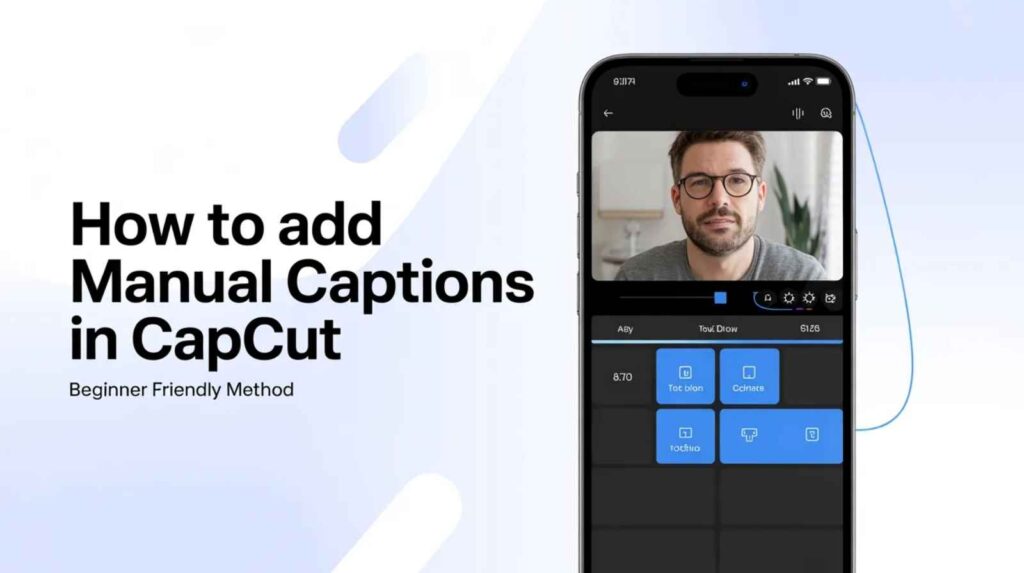
Step 1: Tap Text Tool
Open your project and select Text option.
Step 2: Add Text Manually
Type your captions manually.
Step 3: Adjust Timing
Place text on timeline according to speech.
Step 4: Customize Style
Change font, size, color, and position.
Manual captions are best for full control and accurate editing.
How to Edit Captions in CapCut
You can easily fix captions after creating them:
- Correct spelling mistakes
- Adjust timing and sync
- Change font style
- Improve readability
- Just tap on the caption in the timeline and edit directly.
How to Add Captions in CapCut PC
On desktop version:
- Import video into CapCut PC
- Click Text > Captions
- Choose Auto or Manual captions
- Edit text and timing
- Export video
CapCut PC is better for long videos and detailed editing.
Tips for Better Captions in CapCut
- Use simple and bold fonts
- Keep sentences short
- Add background shadow for clarity
- Avoid too many animations
- Keep style consistent throughout video
These tips help improve video editing captions and engagement.
Common Caption Problems & Fixes
Captions Not Working
Check internet connection and update CapCut.
Wrong Subtitles
Select correct language before generating captions.
Caption Delay Issue
Adjust timing manually in timeline.
Hard to Read Text
Increase font size and add background shadow.
CapCut Auto Captions Not Working Fix
If the CapCut subtitle generator is not working:
- Restart CapCut
- Check internet connection
- Clear app cache
- Update to latest version
FAQs
How to add captions in CapCut automatically?
Use Auto Captions tool, select language, and generate subtitles.
Can CapCut generate subtitles automatically?
Yes, CapCut uses speech-to-text technology.
How to edit captions in CapCut?
Tap caption text in timeline and make changes.
Why are captions important in videos?
They increase engagement, watch time, and accessibility.
How to fix caption delay in CapCut?
Adjust timing manually in the timeline.
Is CapCut auto captions free?
Yes, basic auto captions feature is free.
Can I use CapCut captions for TikTok and Reels?
Yes, it works perfectly for all social media platforms.
Conclusion
Learning how to add captions in CapCut is very easy in 2026. You can use auto captions for fast results or manual captions for full control.
Captions make videos more engaging, improve watch time, and help reach a larger audience. Whether you are a beginner or advanced editor, captions are now essential for successful video content.Start using captions in your next video and see the difference in engagement.