Today, captions are no longer just an option, but a must for contemporary video production. Captions make your content accessible to viewers when there is no audio, whether you’re recording a video for YouTube, Instagram, TikTok, or an online course. They also enhance accessibility, engagement and SEO.
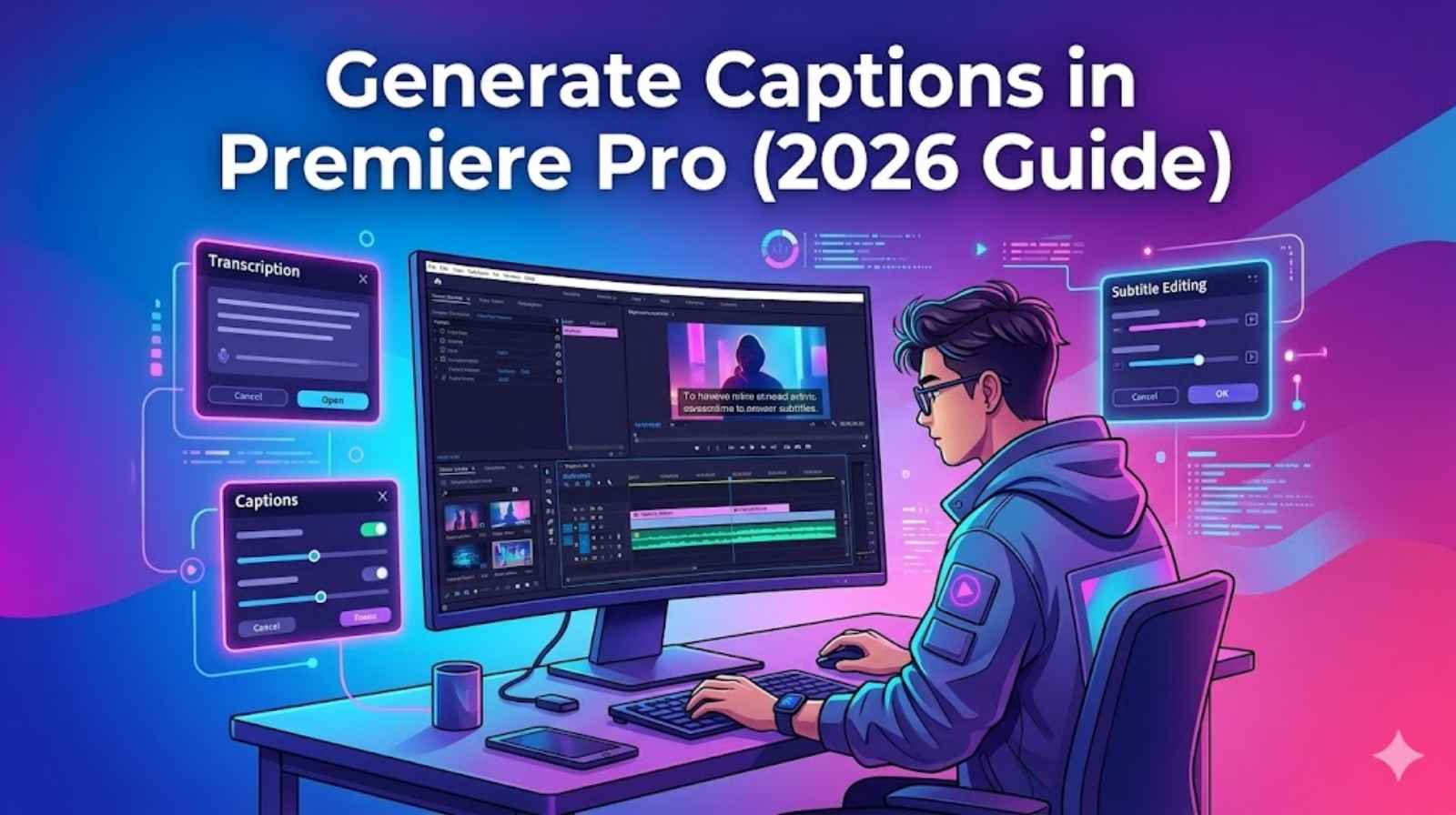
Those who use Adobe Premiere Pro already have one of the most powerful tools to create auto-generated captions. In this guide you will learn how to create captions Premiere Pro, auto captions Premiere Pro, how to edit captions, how to style them and how to export them from Premiere Pro.This is a full tutorial for Premiere Pro beginner and pro in the captioning. You will also discover the complete captioning workflow in Premiere Pro, from the transcription to the final export.
What Are Premiere Pro Captions?
Premiere Pro Captions are text elements used to show the dialogue that is spoken in the video recording. They are also called “subtitles.”
Captions can be helpful for:
- People who watch without sound
- Hearing-impaired audiences
- How to optimize your site with text content
- Increasing video engagement
Types of Captions
There are two main types:
- Open captions Premiere Pro
These are permanently visible and can’t be turned off.
- Closed captions Premiere Pro
These may be controlled by the viewer, particularly on YouTube.
With Adobe Premiere captions, the creator can simply add subtitles to any video content.
Why Captions Are Important for Videos
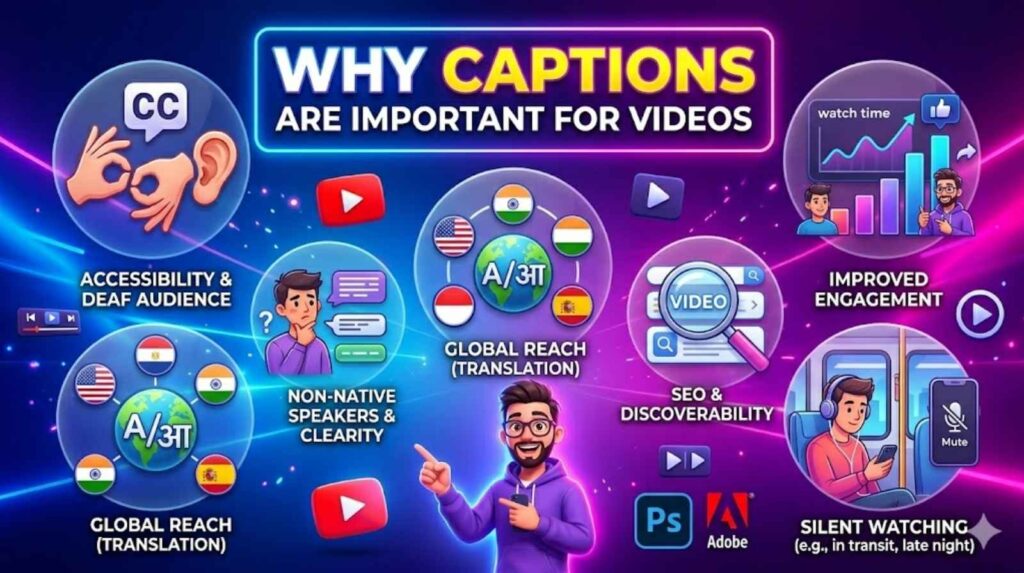
One of the most effective ways of video growth is through captions.
Key Benefits
- Better Engagement
Instagrammers and TikTokers typically follow videos in silent mode. Uses captions to hold his attention.
- Higher Watch Time
Captions facilitate easy understanding of content, which leads to better retention.
- Improved SEO
Video captions Premiere Pro help search engines to understand your video.
- Accessibility
Captions ensure that your content is accessible to all.
- Global Reach
Premiere pro subtitles can be translated into various languages.
How to Generate Captions Premiere Pro (Step-by-Step Guide)
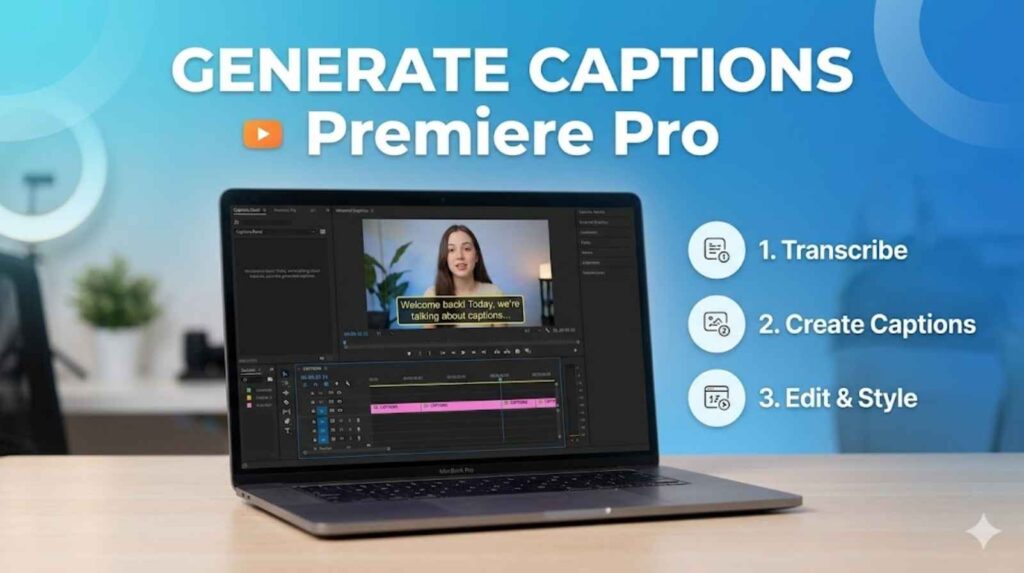
This is the key to this guide.
Step 1: Import Your Video
Load the video in the timeline in Adobe Premiere Pro (captions timeline Premiere Pro).
For optimal results, ensure that your audio is clear.
Step 2 : Open Captions Panel Premiere Pro
- Click on Window > Text Panel.
- This is the panel to add captions to Premiere Pro.
This panel is for transcription and captioning. Import Your Video
Step 3: Use Transcription Tool Premiere
Click on Transcribe Sequence to begin auto transcription Premiere Pro.
Settings to Select:
- Choose correct subtitle language Premiere Pro
- Enable speaker detection (optional)
This built-in transcription tool Premiere converts speech into text.
Step 4: Generate Captions from Audio
Once transcription is complete:
- Click Create Captions
- Select subtitle format
This step will automatically caption audio.
- AI captions Premiere Pro
- Convert audio to subtitles.Make subtitles for video in Premiere Pro.
- generate subtitles automatically
Step 5: Adjust Auto Caption Settings Premiere
- You can control
- Caption length
- Line breaks
- Timing
These are part of auto caption settings Premiere.
How to Add Captions Premiere Pro Manually
Automatic captions sometimes aren’t sufficient.
To manually add captions:
- Use captions tool Premiere Pro
- Add text manually
- Captions on timeline
In professional subtitle creation workflow, accuracy is paramount and manual captions are used.
Subtitle Editing Premiere Pro (Complete Guide)
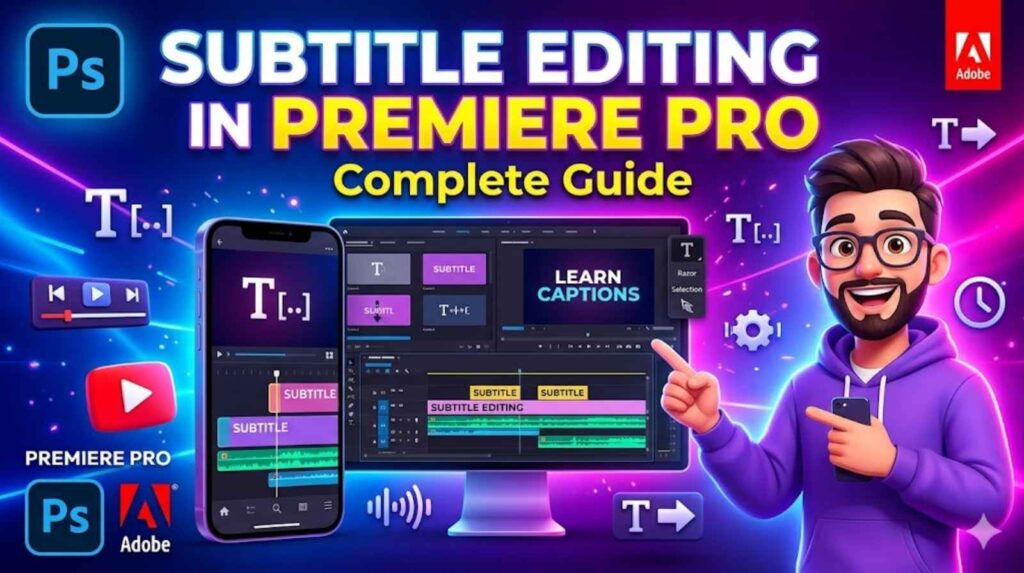
After generating captions, editing is necessary.
Caption Editing Tools Premiere
Utilize inbuilt tools to:
Fix spelling mistakes
- Correct grammar
- Improve readability
Subtitle Timing Premiere Pro
To fix timing:
- Drag caption clips
- Match with audio
This is known as subtitle sync Premiere Pro.
Subtitle Formatting Premiere Pro
Formatting improves readability:
- Break long sentences
- Use punctuation
- Keep captions short
Caption Styles Premiere Pro (Customization Guide)
Captions can enhance user experience by being styled.
Caption Font Premiere Pro
Choose clean and readable fonts:
- Sans-serif fonts are best
Subtitle Positioning in Premiere Pro
• Put captions at the bottom of the screen
• Make sure they do not block visuals in your video
Subtitle Customization in Premiere
You can change a lot of things like
• Font size to make it easier to read
• Color to make it look nicer
• Background to make it stand out
These are all part of the caption styles in Premiere Pro and the caption settings in Premiere Pro.
Caption Workflow in Premiere Pro is a professional method
A good caption workflow in Premiere Pro includes these steps
1. Import your video into Premiere Pro
2. Use the speech to text feature in Premiere Pro
3. Generate captions for your video
4. Edit the captions to make sure they are correct
5. Apply styles to the captions to make them look
6. Export the captions
This is also called
• Subtitle workflow in Adobe Premiere
• Caption automation in Premiere Pro
Transciption Accuracy premiere Pro(Tips to improve Results)
To improve transcription accuracy in Premiere Pro
• Use good quality audio
• Remove any background noise
• Choose the language for the captions
• Speak clearly so the audio is easy to undestand
Good audio makes better auto subtitles in Premiere Pro results
How to Export Captions (Caption Export Premiere Pro)
After you edit your captions export them correctly
Export with Video
- Go to the Export settings in Premiere Pro
- Turn on the captions
- Choose to burn the subtitles in Premiere Pro
This makes captions.
Subtitle Export Settings
- Export the captions as an SRT file
- Upload the file to YouTube or other platforms
These are the subtitle export settings
Add Subtitles to Video Premiere (Final Step)
To add subtitles to your video in Premiere
- Attach the captions track to your video
- Export the video
- Upload the video to your platform
This completes your subtitle workflow in Adobe Premiere.
Common Problems in Premiere Pro Subtitles
Captions Not Showing
- Turn on the captions track
- Check the timeline to make sure the captions are there
Wrong Transcription
- Edit the captions manually to fix any mistakes
- Improve the quality to get better captions
Sync Issues
Adjust the subtitle timing in Premiere Pro to fix the problem
Best Tips for Better Video Captions Premiere Pro
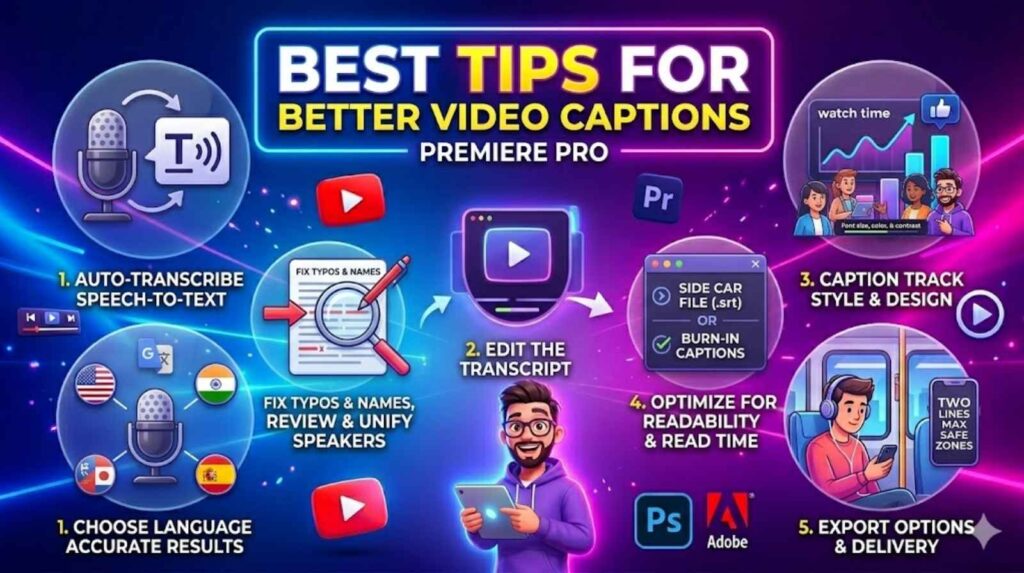
Follow these tips to make your captions better
• Keep the captions short and to the point
• Use language that is easy to understand
• Make sure the captions are aligned properly in Premiere Pro
• Use consistent subtitle presets in Premiere Pro
• Focus on making the captions easy to read
These tips make your captions better for social media video
Advanced Caption Techniques
Use Caption Presets
Using subtitle presets in Premiere Pro saves time and keeps your style consistent
Optimize for Social Media
Different platforms need different caption styles
• TikTok needs large and bold captions
• YouTube needs standard subtitles
• Instagram needs short and engaging captions
Improve SEO with Captions
Captions help search engines understand your content.Using video captions in Premiere Pro can make your video more visible.
Conclusion
Learning how to generate captions in Premiere Pro is a valuable skill for video creators todayWith features like auto captions in Premiere Pro, AI captions in Premiere Pro and speech to text in Premiere Pro making captions is fast and easy.Using Adobe Premiere Pro you can follow a complete caption workflow in Premiere Pro from start to finish.
Whether you want subtitles closed captions in Premiere Pro or styled captions everything is possible with the built-in tools.By following this guide you can make professional captions that improve engagement, accessibility and SEO performance
FAQs
1. How to transcribe in Premiere Pro automatically?
Use the transcription tool in the Text panel. Click “Transcribe Sequence”
2. Can I generate subtitles automatically?
Yes you can generate subtitles automatically using AI captions
3. What is the best subtitle generator in Premiere Pro?
The built-in subtitle generator in Premiere Pro is the option
4. How to fix subtitle timing in Premiere Pro?
Adjust the captions in the timeline for subtitle sync in Premiere Pro
5. Can I export captions for YouTube?
Yes use the caption export in Premiere Pro and export as an SRT file
6. What are open and closed captions?
- Open captions in Premiere Pro: are always visible
- Closed captions in Premiere Pro :optional display
7. How to improve transcription accuracy in Premiere Pro?
Use audio and choose the correct subtitle language in Premiere Pro