
Watching your favourite shows becomes frustrating when subtitles stay on the screen. Many users search for “how to turn off captions on Roku” because captions sometimes appear without warning. In some cases, they stay enabled even after changing the settings. That can feel like trying to swat away a fly that keeps coming back.
The good news is that learning how to turn off captions on Roku is usually quick and simple. Roku devices include several ways to manage subtitles and accessibility features. You can disable captions from the system menu, while streaming videos, or directly inside apps like Netflix and Disney Plus.
This guide explains how to turn off captions on Roku step by step. You will also learn about Roku caption settings, troubleshooting fixes, and ways to stop subtitles from returning. Whether you own a Roku TV or a Roku Streaming Stick, these methods work smoothly across most devices and streaming apps.
Understanding Roku Caption Settings Before You Start
Before changing anything, it helps to understand how Roku handles subtitles and accessibility tools. Many people confuse subtitles with closed captions. They look similar on screen, but they work differently. Subtitles mainly translate spoken words. Closed captions also include sound effects, background noises, and speaker descriptions.
Roku devices offer built-in accessibility controls through the Roku accessibility settings menu. These controls help users who are deaf or hard of hearing. However, some streaming apps ignore the Roku system settings and use their own subtitle preferences instead. That is why users often wonder “where are Roku caption settings” when captions keep returning after being disabled.
For example, Netflix may save subtitle preferences to your viewing profile. Disney Plus can store caption settings separately from your Roku device. This split system often causes confusion. Someone may successfully turn off subtitles on Roku only to see captions reappear inside another app later.
Another common issue comes from accidental remote presses. Many Roku remotes use shortcut buttons that instantly open subtitle menus. One press can activate captions without you realising it. This explains why many users search for “why are captions stuck on Roku” after subtitles suddenly appear during streaming.
How to Turn Off Captions on Roku From the Settings Menu
The easiest way to disable captions across your device is through the main settings menu. This method works well if captions appear on nearly every app and channel.
To begin, press the Home button on your Roku remote. Open Settings and move to Accessibility. Older Roku models may show Accessibility as Captions. Select Captions Mode and switch it to Off.
This process instantly applies Roku closed captions off settings across most channels. It is one of the fastest ways to disable closed captions on Roku TV devices permanently.
| Roku Menu Path | Function |
| Settings > Accessibility > Captions Mode | Turns captions on or off |
| Settings > Accessibility > Caption Style | Changes font and appearance |
| Settings > Accessibility > Shortcut | Controls remote shortcuts |
Many people searching for “how to remove captions on Roku TV” only adjust captions inside streaming apps. However, Roku system settings usually override app behaviour first. That makes this method more effective for long-term subtitle control.
The Roku display settings captions section also allows users to customise text size, colour, transparency, and background style. These tools improve readability for viewers who still prefer subtitles but want a cleaner screen.
A recent survey from Statista showed that over 50% of younger viewers regularly use captions while streaming. Yet many users disable them during sports, documentaries, or family viewing because subtitles can distract from visuals. That explains the growing number of searches related to “how to stop captions on Roku” and “hide subtitles on Roku.”
How to Turn Off Captions on Roku While Streaming Videos
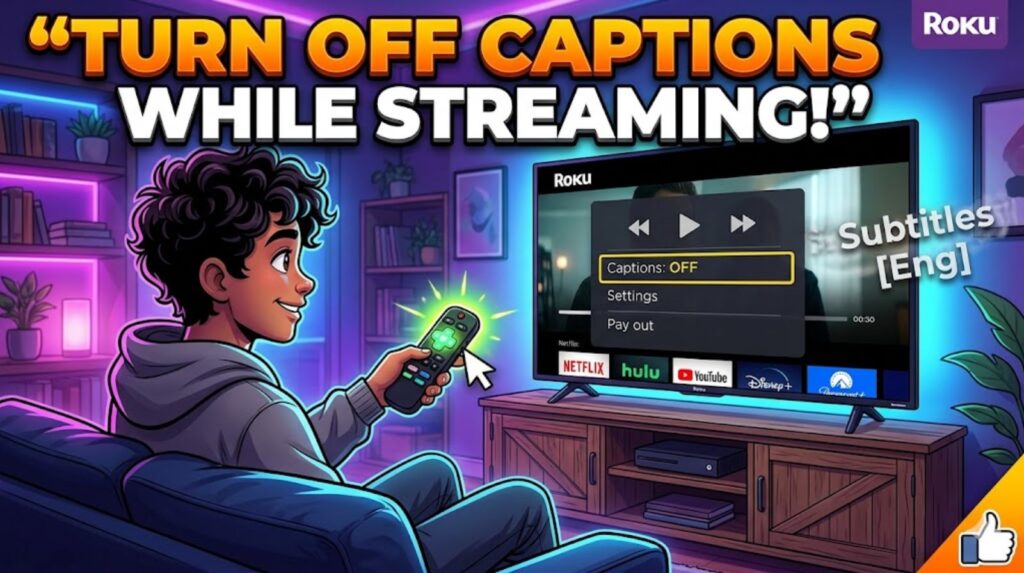
Sometimes captions only appear during one film or TV episode. In that case, changing settings during playback works faster than editing the main Roku menu.
Start playing your video. Press the star (*) button on the remote or open the playback settings menu. Select Subtitles or Captions and choose Off. This instantly helps users turn off captions on Roku while watching content.
This method is especially useful for live TV apps and sports streaming services. Live channels often use separate subtitle feeds that do not follow system-wide Roku settings.
The Roku remote caption control feature gives quick access to subtitle menus during playback. Many users accidentally activate captions by pressing the star button. However, the same shortcut also helps users quickly disable subtitles without leaving the video.
Here is a quick comparison of playback caption controls:
| Streaming Situation | Best Caption Method |
| Watching Netflix | Use playback subtitle menu |
| Watching live TV | Use remote star button |
| Streaming YouTube | Change captions inside YouTube settings |
| Using Roku Channels | Use Roku playback options |
Users searching for the “best way to turn off captions on Roku” often prefer this method because it only takes a few seconds. It also works well for temporary subtitle changes during movies or late-night viewing sessions.
One Reddit user explained how subtitles accidentally stayed active during an entire football match because their child pressed the remote shortcut button. A simple playback menu adjustment solved the issue instantly. Situations like this show why understanding Roku subtitle settings matters.
How to Turn Off Captions on Roku for Netflix, Hulu, and Disney Plus
Each streaming service handles subtitles differently. Even if Roku captions are disabled, apps like Netflix and Hulu may still show subtitles.
Netflix
Netflix saves subtitle preferences to user profiles. To disable subtitles on Roku while watching Netflix, pause the video and open Audio & Subtitles. Set subtitles to Off and continue playback.
Many users searching for “Roku streaming apps caption settings” struggle because Netflix syncs subtitle preferences across devices. Turning subtitles off on Roku may also affect your phone, tablet, or smart TV profile.
Hulu
Hulu sometimes restores subtitles after advertisements or playback interruptions. To turn off subtitles on Roku, open the playback menu inside Hulu and disable captions manually.
Users often search for “Roku captions won’t turn off” because Hulu occasionally saves old subtitle preferences in app memory. Restarting the app usually fixes the problem.
Disney Plus
Disney Plus uses its own subtitle control panel. During playback, select the subtitle icon and turn captions off. This instantly helps users know how to remove subtitles on Roku when streaming Disney content.
Disney Plus updates occasionally reset subtitle preferences. That explains why viewers sometimes search for “how to fix Roku subtitles staying on.”
| App | Caption Settings Location | Common Issue |
| Netflix | Audio & Subtitles | Profile syncing |
| Hulu | Playback Settings | Ads restoring captions |
| Disney Plus | Subtitle Icon | Updates resetting settings |
| Prime Video | CC Menu | Separate account settings |
Why Captions Stay On After You Turn Off Captions on Roku
One of the most frustrating problems happens when subtitles remain active after being disabled. This issue affects many users searching for “subtitles not turning off on Roku.”
In most cases, streaming apps override Roku settings. Roku may show captions as disabled, yet the streaming service still forces subtitles through its own system.
Software bugs also cause problems. After firmware updates, some Roku devices temporarily ignore subtitle preferences. Restarting the device often fixes the issue.
Another hidden cause involves account syncing. Shared streaming accounts can activate subtitles from another device. For example, if someone enables captions on Netflix using a tablet, the Roku profile may copy the same settings automatically.
A 2024 streaming support report found that subtitle sync issues increased after app updates across several streaming platforms. That explains the rising number of searches for “why are captions stuck on Roku” and “Roku captions won’t turn off.”
Users should also check whether accessibility shortcuts remain active. Some Roku remotes activate captions after four quick presses of the star button. This feature helps accessibility users but occasionally causes accidental subtitle activation.
Common Fixes if You Cannot Turn Off Captions on Roku
If captions refuse to disappear, several troubleshooting methods usually solve the issue quickly.
Restarting the Roku device is often the simplest fix. Navigate to Settings, choose System, and select Power followed by Restart. This refreshes temporary subtitle glitches and resets playback memory.
Updating software also helps. Older firmware versions sometimes conflict with streaming apps. Open Settings, select System Update, and install any available updates. This improves Roku streaming device settings and subtitle stability.
Reinstalling apps works surprisingly well too. Remove the streaming app, restart the Roku device, and reinstall the channel. Many users searching for “Roku caption troubleshooting” solve stubborn subtitle problems using this exact method.
Here are the most effective troubleshooting fixes:
| Problem | Recommended Fix |
| Captions stay enabled | Restart Roku |
| Captions return after ads | Reinstall streaming app |
| Subtitle settings not saving | Update Roku software |
| Remote activates captions | Disable shortcut settings |
| Streaming apps ignore settings | Change captions inside app |
Users searching for “easy way to disable Roku captions” often overlook software updates. Yet outdated firmware remains one of the biggest causes of subtitle glitches.
How to Turn Off Captions on Roku TV Using the Remote Control
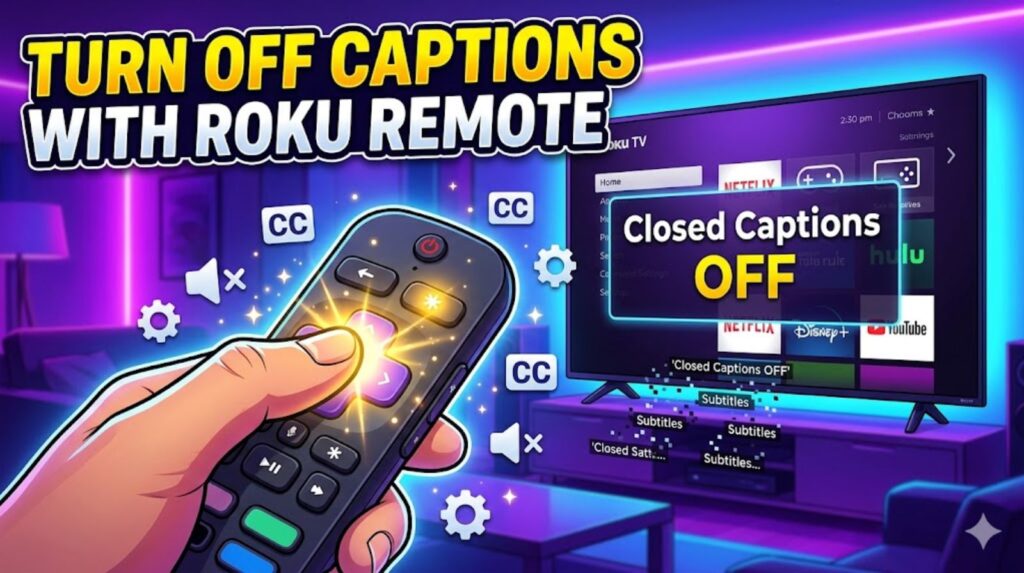
The Roku remote offers quick subtitle control without opening the full settings menu. This is useful when captions suddenly appear during playback.
Press the star (*) button while watching content. Open the captions menu and switch subtitles off. This shortcut helps users searching for “how to use Roku remote for captions.”
Voice-enabled remotes also support commands such as:
- “Turn captions off”
- “Disable subtitles”
- “Closed captions off”
This feature works well for users who prefer hands-free controls. It also improves accessibility for elderly viewers.
The Roku TV subtitle control guide built into many Roku TVs makes caption management easier than older streaming systems. Most Roku devices now place subtitle controls directly inside playback menus.
However, some users accidentally trigger captions while adjusting volume or playback settings. Disabling shortcut buttons inside Roku accessibility caption options can prevent this issue.
Many users searching for “steps to turn off captions on Roku” find the remote shortcut method fastest because it avoids navigating through several settings menus.
How to Manage Subtitles on Roku Device Across Different TVs
Not every Roku device behaves the same way. Roku TVs from TCL, Sharp, and Hisense may organise menus differently. However, the basic subtitle controls remain very similar.
For example, TCL Roku TVs place accessibility settings directly inside the main Settings menu. Hisense Roku TVs sometimes group subtitle controls under Display preferences instead.
The Roku video caption options section usually includes:
- Closed captions
- Subtitle language
- Text style
- Background transparency
- Accessibility shortcuts
Understanding these options makes it easier to manage captions on Roku devices effectively.
Some users also prefer temporary subtitles during documentaries or foreign-language scenes. In those situations, learning how to change caption settings on Roku becomes more useful than disabling captions completely.
Tips to Prevent Captions From Turning Back On
Captions often reappear because streaming apps save preferences separately. Checking subtitle settings regularly prevents confusion later.
Keep apps updated because outdated software causes subtitle glitches more frequently. Netflix, Hulu, and Disney Plus release updates often to improve accessibility features.
Shared household profiles can also create problems. If multiple people use one streaming account, captions may reactivate automatically from another device.
A simple routine helps:
- Check Roku system caption settings monthly
- Update apps regularly
- Restart Roku after major software updates
- Avoid accidental remote shortcut presses
These small habits reduce future subtitle frustrations significantly.
Frequently Asked Questions
How do I turn off captions on Roku?
Open Settings, go to Accessibility, select Captions Mode, and switch it to Off.
How to disable captions on Roku TV permanently?
Disable captions through the main Roku accessibility menu and also check subtitle settings inside streaming apps.
Can I disable subtitles on Roku apps individually?
Yes. Apps like Netflix, Hulu, and Disney Plus include separate subtitle controls during playback.
Why are captions stuck on Roku?
This usually happens because streaming apps override Roku system settings or because subtitle preferences sync across devices.
How to stop subtitles on Roku TV while streaming?
Press the star button during playback and select subtitles Off from the menu.
What are Roku accessibility caption options?
These settings control subtitle visibility, text size, style, background colour, and shortcut buttons.
What is the easiest way to disable Roku captions?
Using the remote star button during playback is usually the fastest method.
Final Thoughts
Learning “how to turn off captions on Roku” becomes much easier once you understand how Roku handles subtitle settings. Most subtitle problems happen because streaming apps use separate controls from Roku system settings.
Checking both Roku accessibility menus and streaming app preferences usually fixes the issue quickly. Whether you need to disable subtitles on Roku, manage playback captions, or solve persistent subtitle glitches, the methods above work across most Roku devices and streaming platforms.
If captions continue returning, restart the device, update the software, and review app-specific settings carefully. In most cases, the solution only takes a few minutes.