
Disney Plus makes streaming simple, but subtitles can sometimes become annoying. Many viewers search for “how to turn off captions on disney plus” because captions suddenly appear during films or TV shows. Sometimes they stay on even after you try to remove them. That can ruin a dramatic scene faster than a burnt bag of popcorn.
If you are wondering “how do I turn off captions on Disney Plus”, you are not alone. Thousands of users face the same issue every day. The good news is that you can usually fix it in less than a minute. Whether you use a Smart TV, Roku, Fire Stick, iPhone, Android phone, or web browser, the process is quite easy once you know where to look.
This guide explains “how to turn off captions on disney plus” step by step. You will also learn how to manage Disney Plus subtitle settings, fix subtitle glitches, and solve problems like Disney Plus captions won’t turn off. By the end, you will know exactly how to control subtitles on any device without stress.
Why Captions Appear on Disney Plus
Captions and subtitles exist for accessibility and convenience. Disney Plus designed them to help viewers understand dialogue better. People with hearing difficulties rely on Disney Plus closed captions every day. Others use subtitles while watching foreign films or noisy action scenes.
However, many viewers accidentally switch subtitles on during playback. One wrong tap on the remote can activate the Disney Plus subtitle menu without you noticing. Some devices also remember previous subtitle settings. That is why captions sometimes reappear later.
Another common reason involves device-level accessibility controls. Smart TVs, streaming sticks, and mobile devices often include their own caption settings. These settings can override the app itself. That explains why many users complain about Disney Plus captions not turning off even after changing app preferences.
Here is a quick comparison between captions and subtitles:
| Feature | Captions | Subtitles |
| Purpose | Accessibility for hearing support | Language translation |
| Includes sound effects | Yes | No |
| Controlled by device settings | Sometimes | Usually app only |
| Common on Disney Plus | Yes | Yes |
Understanding this difference makes Disney Plus subtitle troubleshooting much easier later.
How to Turn Off Captions on Disney Plus on Any Device
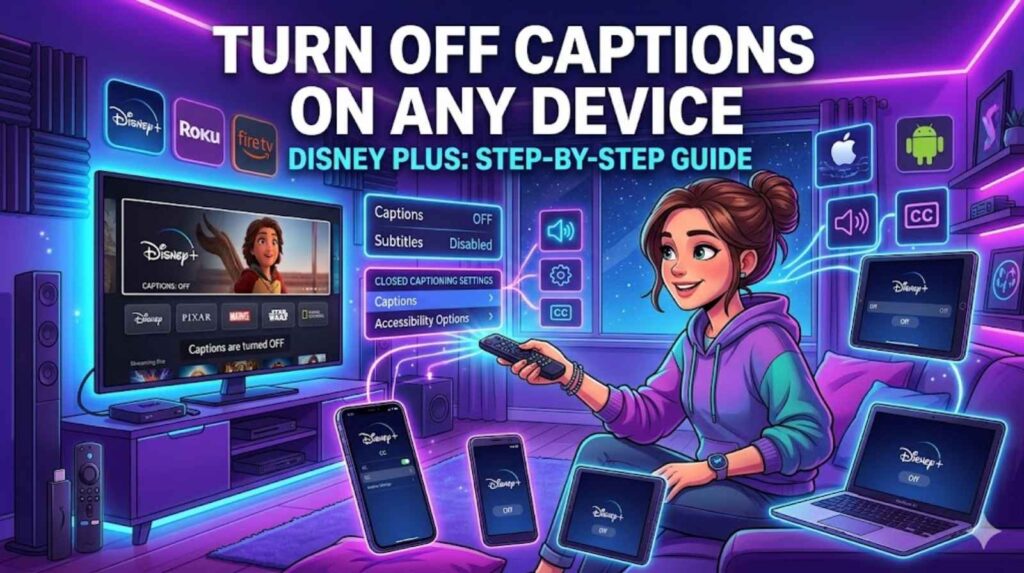
Learning “how to turn off captions on disney plus” becomes simple once you understand the playback controls. Disney Plus keeps subtitle options inside the video player itself. You do not need advanced technical knowledge. In most cases, the fix takes only a few seconds.
Start any film or series on Disney Plus. Pause the content and look for the subtitle icon. It usually appears in the top-right corner of the screen. Open the icon and enter the Disney Plus subtitle settings section. Choose “Off” under subtitles and captions. The changes apply instantly.
Many people search for “how to stop captions on Disney Plus” because they cannot find the subtitle menu. The menu location changes slightly depending on the device. On mobile phones, you usually tap the screen first. On TVs, you often press the remote’s up button.
The table below explains where to find subtitle controls on common devices:
| Device | Subtitle Menu Location |
| Smart TV | Top-right playback menu |
| Roku | Asterisk (*) button |
| Fire Stick | Menu during playback |
| iPhone | Tap screen while video plays |
| Android | Subtitle icon in player |
| Web Browser | Settings icon |
If you want the easiest way to turn off captions on Disney Plus, use playback controls directly inside the video. That method works on almost every platform.
Some users also ask about “how to disable subtitles on Disney+” permanently. Sadly, Disney Plus does not always save subtitle preferences across every device. Certain streaming platforms reset playback settings after updates or account sign-ins.
How to Turn Off Captions on Disney Plus Using TV Settings
Sometimes the Disney Plus app is not the real problem. Your TV itself may force captions to stay enabled. This happens more often than people realise. Modern televisions include accessibility menus that override app controls completely.
If you want to know “where are Disney Plus caption settings” on your TV, start with both the app settings and the television menu. Samsung, LG, Sony, and TCL TVs all store accessibility settings differently.
For example, Samsung TVs usually place caption controls inside:
Settings → General → Accessibility → Caption Settings
LG Smart TVs often use:
Settings → Accessibility → Closed Captions
Many users searching for “how to turn off closed captions on Disney Plus TV” forget this important step. Turning captions off inside the app may not work if the TV accessibility feature stays active.
A streaming expert from TechRadar once explained:
“Most subtitle problems come from conflicting device accessibility settings rather than the streaming app itself.”
That statement matches real-world experience. Users often spend hours changing app settings while the TV continues forcing captions in the background.
If you still see subtitles, restart the television after changing settings. Smart TVs sometimes fail to apply changes immediately. A simple reboot can solve stubborn caption glitches surprisingly fast.
How to Turn Off Captions on Disney Plus on iPhone and Android
Mobile users frequently ask “how to remove subtitles on Disney Plus iPhone” because the subtitle icon looks tiny during playback. Thankfully, the fix remains simple once you know where to tap.
Open Disney Plus and start a programme. Tap the screen while the video plays. A subtitle icon appears in the top corner. Select it and turn subtitles off. That instantly removes captions for the current session.
Android devices work in a similar way. Users wondering “how to disable subtitles on Disney Plus” on Android should open playback controls and disable subtitles directly inside the app.
However, smartphones include another hidden layer of accessibility controls. iPhones allow system-wide subtitles through:
Settings → Accessibility → Subtitles & Captioning
Android devices often place captions under:
Settings → Accessibility → Hearing Enhancements
These controls sometimes override the app itself. That is why people complain about Disney Plus subtitle settings not working on mobile devices.
Here is a quick troubleshooting table:
| Problem | Solution |
| Captions keep returning | Disable phone accessibility captions |
| Subtitle menu missing | Update Disney Plus app |
| Captions delayed | Restart app |
| Subtitle icon frozen | Clear app cache |
Many users ask, “can you turn off captions on Disney Plus permanently?” The answer depends on your device. Some phones remember settings correctly while others reset subtitle preferences after updates.
Common Issues When Learning How to Turn Off Captions on Disney Plus
Nothing frustrates viewers more than subtitles refusing to disappear. The issue affects thousands of Disney Plus users every month. Online forums constantly discuss “why are captions stuck on Disney Plus” and similar playback bugs.
One major reason involves outdated software. Older app versions often contain subtitle glitches. If your captions stay stuck, update Disney Plus immediately. Streaming apps receive frequent bug fixes behind the scenes.
Another common problem happens when cached data becomes corrupted. Temporary files can confuse the app and trigger subtitle errors repeatedly. Clearing app cache often fixes Disney Plus captions won’t turn off problems within minutes.
Internet instability also causes subtitle sync issues. Poor connections sometimes force subtitles to reload incorrectly during playback. That can create delayed captions or ghost subtitles.
Users searching for “how to fix Disney Plus captions problem” should follow this simple order:
- Restart the app
- Restart the device
- Update Disney Plus
- Clear app cache
- Reinstall the application
This process solves most subtitle problems quickly.
A Reddit case study revealed that many Roku users fixed caption problems simply by restarting their streaming stick after changing subtitle preferences. Small fixes often make a huge difference.
How to Turn Off Captions on Disney Plus for Smart TVs and Streaming Devices
Streaming devices all handle subtitles differently. That creates confusion for viewers using multiple gadgets at home. Someone may disable subtitles successfully on a phone yet still see captions on their TV later.
Roku users frequently search for “how to turn off Disney Plus subtitles on Roku” because Roku devices include separate caption controls. During playback, press the star button on the remote and select subtitles off.
Amazon Fire Stick users often ask “how to turn off subtitles on Disney Plus Fire Stick”. Fire TV devices allow subtitle control through both playback settings and accessibility menus.
Apple TV and Chromecast devices work similarly. Open playback controls during streaming and disable captions from the subtitle section.
Gaming consoles also support subtitle management. Xbox and PlayStation users can adjust captions through system accessibility settings. That becomes important when Disney Plus subtitle options inside the app fail to work properly.
The table below compares popular streaming devices:
| Device | Extra Accessibility Captions |
| Roku | Yes |
| Fire Stick | Yes |
| Apple TV | Yes |
| Chromecast | Limited |
| Xbox | Yes |
| PlayStation | Yes |
Understanding device behaviour helps you manage captions on Disney Plus more effectively.
Tips to Fix Captions That Won’t Turn Off on Disney Plus
Sometimes subtitles behave like an unwanted guest who refuses to leave the party. You switch them off, yet they return moments later. Thankfully, most caption issues have practical fixes.
Restarting the device should always come first. Streaming systems often hold temporary playback bugs in memory. A fresh reboot clears hidden glitches instantly.
Updating Disney Plus also matters. Developers regularly release patches for playback errors and accessibility conflicts. Users struggling with Disney Plus subtitle troubleshooting often fix problems simply by updating the app.
Cache clearing helps too. Smart TVs, phones, and streaming devices all store temporary app files. Corrupted cache data frequently causes subtitle problems.
If nothing works, reinstall Disney Plus completely. That removes damaged settings and restores fresh playback preferences.
Here are the most effective fixes ranked by success rate:
| Fix | Effectiveness |
| Restart device | High |
| Update app | High |
| Clear cache | Medium |
| Reinstall app | High |
| Reset accessibility settings | Medium |
Many viewers searching “how to disable Disney Plus captions on smart TV” discover that accessibility resets finally solve stubborn problems.
Best Practices for Managing Disney Plus Subtitle Options
Subtitles are not always the enemy. Many people use them for language learning, noisy environments, or improved dialogue clarity. Good subtitle controls make streaming more flexible.
Disney Plus allows users to customise font size, colour, and appearance. These settings help viewers personalise their experience. If you ever need subtitles later, you can adjust them easily through the Disney Plus subtitle menu.
Parents also use captions for children learning to read. Studies from Oxford University have shown that subtitles can improve vocabulary recognition in younger viewers.
Still, many users prefer a clean screen while watching films. Knowing how to remove captions from Disney Plus quickly keeps playback distraction-free.
If you switch between devices often, remember this key detail:
Disney Plus settings may not sync perfectly across every platform.
That small fact explains why captions sometimes reappear unexpectedly.
Frequently Asked Questions
How do I turn off captions on Disney Plus?
Open playback controls during a video and select the subtitle icon. Choose “Off” under captions.
Why are captions stuck on Disney Plus?
Device accessibility settings, outdated apps, or cached data often cause the issue.
How to change subtitle settings on Disney Plus?
Open the subtitle menu during playback to customise language, style, and appearance.
How to turn off captions on Disney Plus app?
Pause the video, tap the subtitle icon, and disable captions inside playback settings.
How to remove captions from Disney Plus on Roku?
Press the Roku star button during playback and switch captions off.
Disney Plus subtitle settings not working. What should I do?
Restart the app, clear cache, update the software, or reinstall Disney Plus completely.
Conclusion
Learning “how to turn off captions on disney plus” does not need to feel complicated. Once you understand the playback controls and device settings, disabling subtitles becomes quick and easy. Most caption issues happen because TVs, streaming devices, or mobile accessibility settings override the app itself.
Whether you use Roku, Fire Stick, Smart TVs, iPhone, Android, or a browser, you can usually solve subtitle problems in minutes. If captions still refuse to disappear, basic troubleshooting steps like restarting the device, clearing cache, or updating the app often work wonders.
Now you know exactly how to remove Disney Plus subtitles, adjust Disney Plus playback settings, and fix common subtitle glitches without frustration. Your next movie night should finally stay caption-free unless you actually want subtitles back.