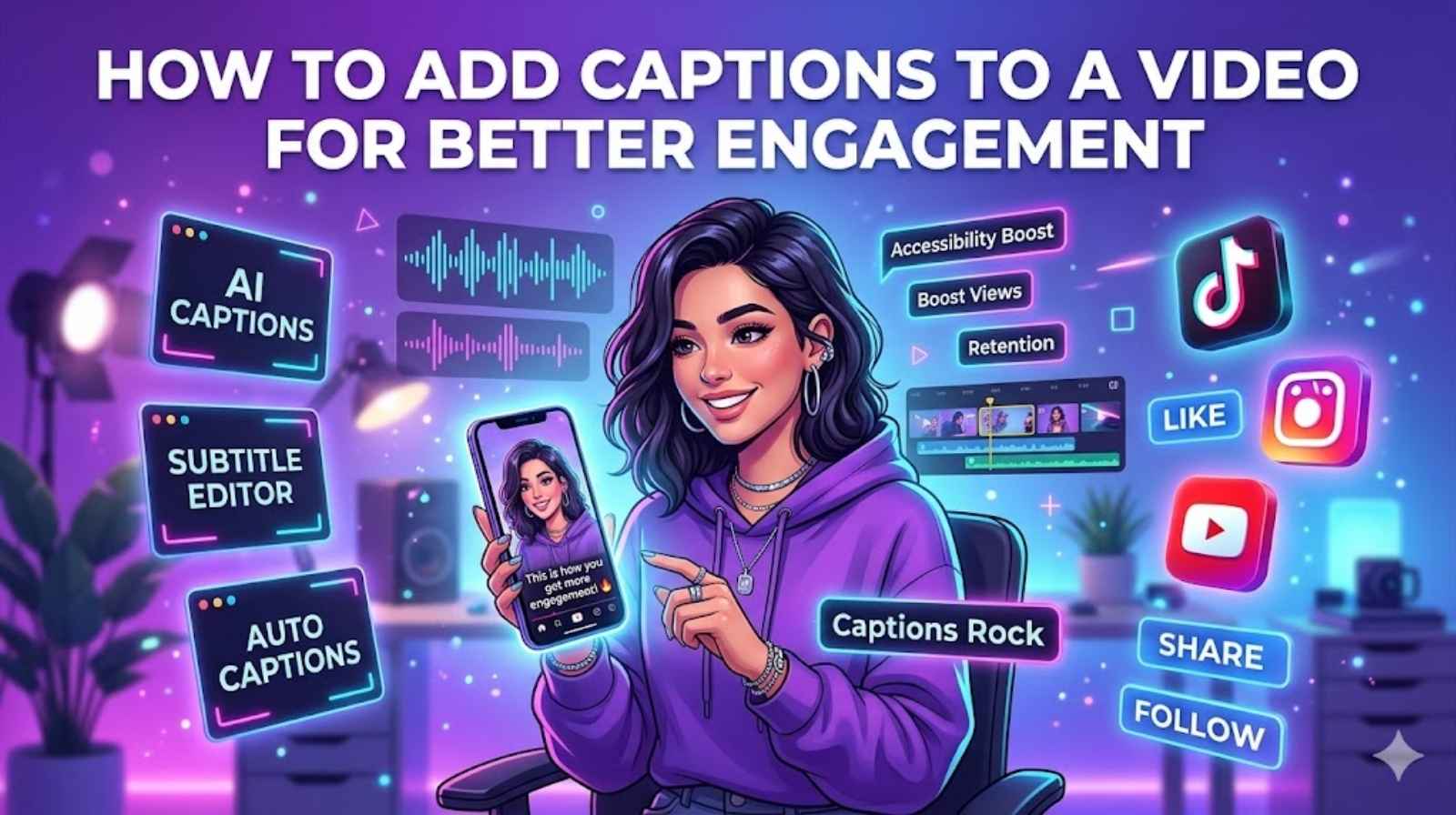
Videos dominate the internet today. People scroll through social media quickly, and many watch content without turning the sound on. That is why learning how to add captions to a video has become more important than ever. Captions help viewers understand your message instantly. They also improve watch time and audience engagement.
Many creators now use video captioning, AI video captions, and automatic video captions to reach larger audiences. Whether you create YouTube tutorials, TikTok clips, online courses, or business promotions, captions make your videos easier to watch and understand. They also improve accessibility for people with hearing difficulties.
If you want to know how to add captions to a video properly, this guide will help you. You will learn the best tools, smart editing techniques, subtitle formatting tips, and the easiest methods to add subtitles to video content across mobile and desktop devices.
Why Learning How to Add Captions to a Video Matters
Learning how to add captions to a video can completely change how people interact with your content. Modern audiences consume videos everywhere. They watch videos on crowded trains, in offices, during lunch breaks, and late at night without sound. If your content lacks captions, viewers may scroll away within seconds.
Research from Meta and Verizon Media found that captions can improve video view time by nearly 12%. That small change can lead to higher engagement, stronger retention, and more conversions. When viewers understand your content quickly, they stay longer. Simple. Yet powerful.
Video accessibility captions also make your content inclusive. Millions of people around the world rely on captions daily. Some viewers have hearing impairments. Others speak English as a second language. Captions remove barriers and create a better viewing experience for everyone.
There is also a major SEO advantage. Search engines cannot watch videos the same way humans can. However, they can read video transcription text, subtitle files, and metadata. That means properly captioned videos often rank better in search results. Platforms like YouTube also use YouTube video captions to understand your content and recommend it to more users.
Another important factor is social media performance. Videos with captions usually perform better on Instagram Reels, TikTok, Facebook, and LinkedIn. Strong social media video captions grab attention instantly. They keep users engaged while scrolling quickly through crowded feeds.
“Captions are no longer optional. They are part of modern video communication.”
Understanding Different Types of Video Captions and Subtitles
Before you caption a video, you should understand the difference between captions and subtitles. Many people confuse the two. They look similar on-screen, yet they serve different purposes.
Closed captions for videos allow viewers to turn captions on or off. They often include sound effects, speaker names, and background audio descriptions. This format improves accessibility significantly.
By contrast, open captions for videos stay permanently visible. Viewers cannot disable them because they are embedded directly into the video. Many creators use open captions on TikTok and Instagram because mobile users often watch videos silently.
There is also a difference between manual captions and automatic video captions. Manual captioning takes longer, yet it produces higher accuracy. AI-generated captions work much faster. Modern speech to text captions tools use machine learning to convert spoken words into text within seconds.
Still, AI is not perfect. Accents, background noise, and fast speech can create errors. That is why experienced creators always review their captions carefully.
The rise of the subtitle generator industry has changed video editing dramatically. Years ago, creating subtitles required hours of manual work. Today, powerful captioning software can generate subtitles automatically while syncing timing with surprising accuracy.
Here is a quick comparison table:
| Caption Type | Best Use Case | Viewer Control | Accessibility |
| Closed Captions | YouTube, Courses | On/Off | Excellent |
| Open Captions | TikTok, Instagram | Always Visible | Very Good |
| AI Captions | Fast Editing | Editable | Moderate |
| Manual Captions | Professional Videos | Editable | Excellent |
How to Add Captions to a Video Step by Step
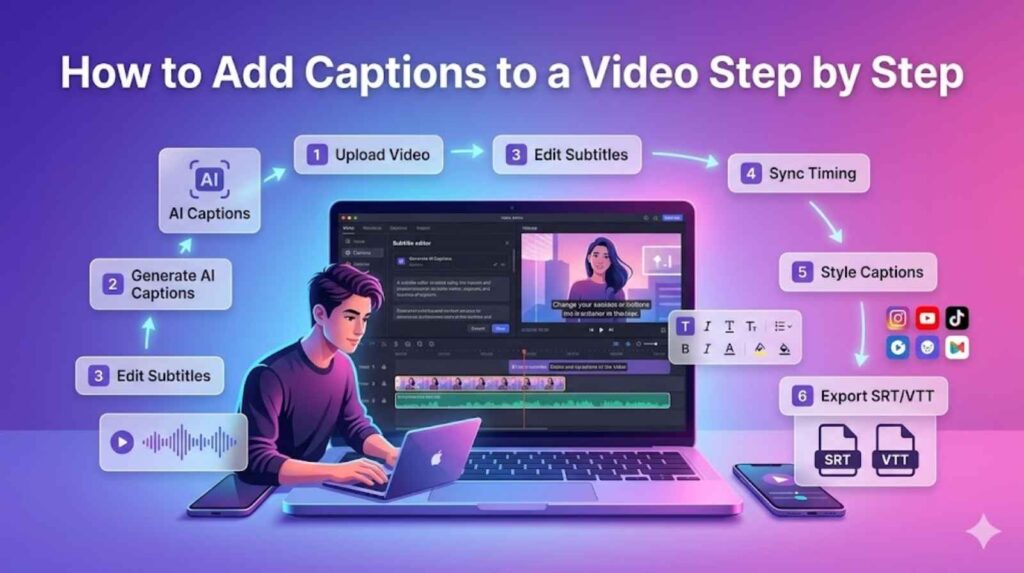
Step 1 – Upload Your Video
The first step in how to add captions to a video is uploading your content into a trusted editing platform. Most tools support MP4, MOV, AVI, and WebM files. If you are wondering how to add captions to MP4 videos, the process is usually straightforward.
Choose a reliable captioning app, subtitle creator, or online editing tool. Popular platforms allow you to drag and drop your video directly into the editor. Cloud-based systems make the process even faster because you do not need to install software.
Many beginners prefer tools that allow them to caption video online because they work directly inside the browser. This saves storage space and simplifies editing.
Step 2 – Generate Automatic Captions
Modern tools use AI to create subtitles automatically. This process is often called automatic video captions or AI video captions. Most platforms include an auto subtitle tool that scans your audio and converts speech into text.
If you want to know how to generate captions with AI, the process usually takes less than five minutes. Upload your video, select the language, and let the AI process the audio.
Some popular tools achieve nearly 90% accuracy in clear audio conditions. However, background noise, heavy accents, and overlapping voices can still confuse the system.
Step 3 – Edit and Refine Captions
After generating captions, you should always review them carefully. Even advanced AI systems make mistakes. This is where a video caption editor becomes extremely useful.
Good editing improves readability and professionalism. Fix grammar errors, punctuation issues, and spelling mistakes. Adjust line breaks so captions feel natural on-screen.
If you want to know how to edit captions in a video, focus on clarity first. Avoid large blocks of text. Short phrases are easier to read quickly.
Professional subtitle editing also improves viewer retention. Well-structured captions feel smooth and polished. Poor captions feel distracting.
Step 4 – Synchronise Captions with Video
Proper caption timing matters more than many people realise. Even accurate captions become frustrating if they appear too early or too late.
Creators often ask how to sync captions with video effectively. The answer is simple. Match captions closely with spoken dialogue. Viewers should read text naturally while hearing speech simultaneously.
Well-made synchronized captions improve comprehension significantly. Timing issues, however, can make videos feel awkward and difficult to follow.
Step 5 – Format and Style Your Captions
Good subtitle formatting improves readability immediately. Use clear fonts, strong contrast, and reasonable text sizes.
Avoid placing captions too high or too low. Keep them near the lower centre of the screen whenever possible. Many creators also use video text overlay styling to match their brand colours and aesthetics.
Readable captions should never block important visual elements. Simplicity works best.
Step 6 – Export or Upload Subtitle Files
Once editing is complete, export your captions. Most platforms support SRT and VTT files. If you are learning how to upload subtitle files, these formats are industry standards.
You can also permanently embed captions into the video. This process is known as how to hardcode captions into a video. Hardcoded captions work especially well for social media content.
Best Tools for How to Add Captions to a Video Easily
Choosing the right tool can save hours of work. Some creators need advanced editing features. Others simply want the easiest way to add subtitles quickly. The best modern platforms combine AI automation with manual editing controls. A strong subtitle generator should offer fast processing, reliable accuracy, and flexible export options.
Popular online tools now include automatic transcription, multi-language support, and advanced subtitle formatting options. Many platforms even support multilingual subtitles for global audiences.
Here is a comparison table:
| Tool Type | Best For | Key Feature |
| AI Captioning Tools | Fast Automation | Automatic video captions |
| Browser Editors | Beginners | Caption video online |
| Mobile Apps | Short Videos | How to add captions on mobile |
| Desktop Software | Professionals | Advanced subtitle editing |
Creators working on YouTube tutorials often prefer desktop editors because they offer better timeline control. Meanwhile, social media creators usually prefer lightweight mobile apps for faster editing.
How to Add Captions to a Video on Mobile and Desktop
Learning how to add captions on mobile has become essential because short-form content dominates social media. Apps now make it incredibly easy to create captions directly on smartphones.
For Instagram Reels, TikTok, and Facebook videos, mobile editing works well because creators can upload and publish quickly. Many apps automatically generate captions in seconds.
If you want to know how to add captions for Instagram reels, use vertical caption layouts with large readable text. TikTok users often prefer animated captions because they feel more dynamic.
Creators searching for how to add captions for TikTok videos should prioritise readability over flashy effects. Fast-moving captions may look stylish, yet viewers struggle to follow them.
Desktop editing provides more precision. Professional creators often use desktop software for YouTube tutorials, webinars, and educational content. Larger screens make it easier to refine caption timing, edit grammar, and manage video subtitles efficiently.
Here is a simple comparison:
| Feature | Mobile | Desktop |
| Speed | Fast | Moderate |
| Precision | Basic | Advanced |
| Best For | Reels & TikTok | YouTube & Courses |
| Editing Control | Limited | Detailed |
Best Practices for Creating Engaging Video Captions
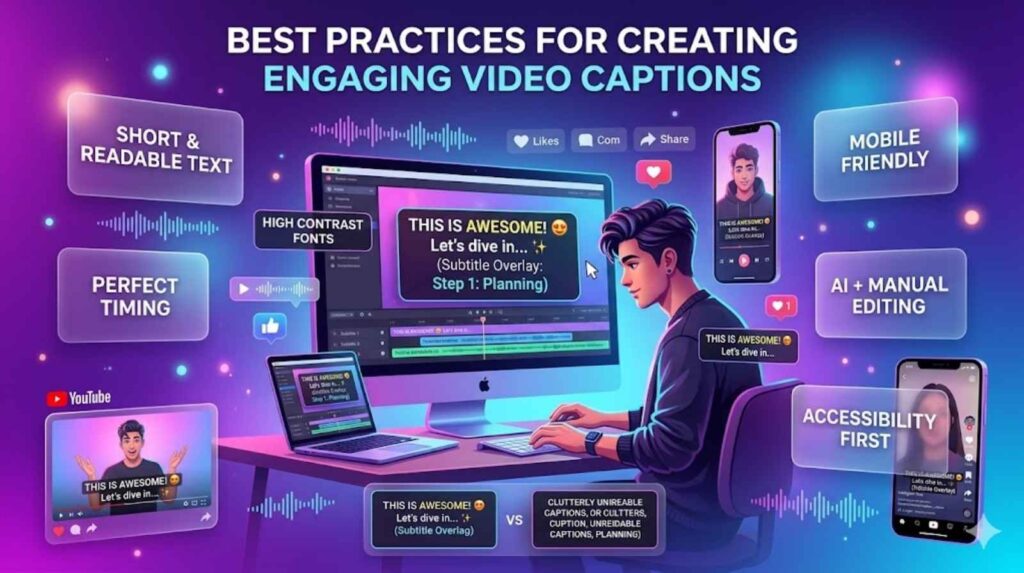
Good captions do more than display words. They improve storytelling. They guide viewer attention. They make videos feel more immersive.
The best captions remain concise. Long paragraphs on-screen overwhelm viewers quickly. Keep captions short and readable.
Professional creators also focus heavily on emotional context. For example, captions like “[dramatic music]” or “[laughing]” improve accessibility and strengthen engagement.
Another smart strategy involves using platform-specific formatting. TikTok captions often appear larger and more animated. YouTube captions usually remain cleaner and more minimal.
A study by Discovery Digital Networks showed that videos with captions gained a 7.3% increase in engagement on average. That improvement can translate directly into more followers, more leads, and higher revenue.
“Captions are not just text. They are part of the viewing experience.”
Common Mistakes to Avoid When Adding Captions to a Video
One major mistake involves trusting AI completely. Although AI video captions have improved dramatically, automated systems still make errors.
Always review your captions manually before publishing. Poor subtitle formatting also damages readability. Tiny fonts, bright colours, and overcrowded text create visual confusion. Clean formatting works best.
Another common issue is incorrect caption timing. Delayed captions frustrate viewers because they interrupt the natural flow of speech. Some creators also ignore accessibility completely.
Proper video accessibility captions should include speaker identification and important sound cues. Finally, avoid placing too much text on-screen at once. Short captions feel smoother and easier to understand.
Tips for How to Add Captions to a Video More Accurately
Clear audio dramatically improves caption quality. Before generating captions, reduce background noise and improve microphone clarity. Better audio leads to more accurate speech to text captions. Manual review also matters.
AI tools cannot always understand names, slang, or technical terminology correctly. Human editing remains essential for polished results.
Testing captions across devices is another smart step. Captions may look perfect on desktop yet appear cramped on mobile screens.
Adding multilingual subtitles can expand your audience significantly. Many creators now publish videos in multiple languages to increase international reach. If you want the best results, choose reliable captioning software with flexible editing tools and export options.
How to Add Captions for Different Types of Videos
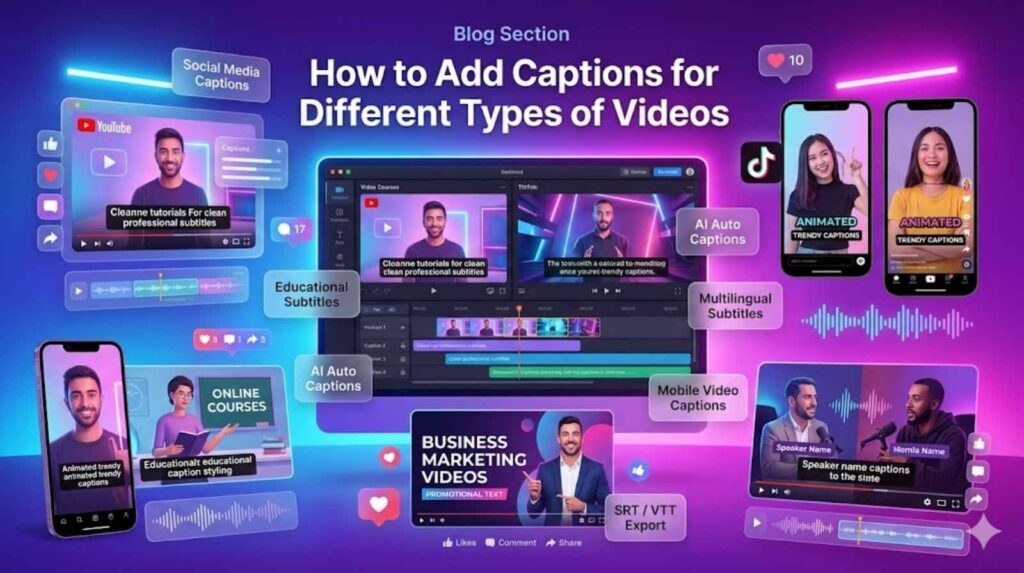
Different videos require different caption styles. Educational videos need slower pacing and highly accurate captions. Marketing videos often use bold animated text to hold attention.
Creators searching for how to caption videos for better engagement should focus on emotional hooks early in the video. Strong opening captions encourage viewers to continue watching.
If you create tutorials, learning how to add captions for online courses can improve comprehension dramatically. Students often replay captioned sections to understand lessons better.
Business owners also use captions heavily in advertisements because captions increase watch time on muted autoplay videos. Meanwhile, creators learning how to caption videos for social media should optimise captions for smaller screens and shorter attention spans.
Easiest Way to Add Captions to Videos Without Software
Many creators now prefer cloud-based tools because they simplify the editing process. Browser editors allow users to upload videos, generate captions, edit subtitles, and export files directly online.
If you are searching for how to add subtitles without software, online editors are usually the best solution. They work on almost any device without installation.
Most platforms also include AI-powered subtitle creator tools that automate the hardest parts of the process.
Free tools work well for beginners. However, paid tools often provide better accuracy, branding controls, and advanced export features.
Frequently Asked Questions
How do you add captions to a video?
Upload your video into a captioning platform, generate captions automatically or manually, edit the text, adjust timing, and export the final subtitle file.
What is the best way to caption a video?
The best way to caption a video combines AI automation with manual editing for maximum speed and accuracy.
How do I add subtitles automatically?
Use an auto subtitle tool or AI-based platform that converts speech into captions automatically.
Can I caption videos online for free?
Yes. Many tools allow users to caption video online without downloading software.
How do I upload subtitle files?
Most platforms support SRT and VTT files. Simply upload the subtitle file during the publishing process.
What is the difference between captions and subtitles?
Captions include sound descriptions and accessibility elements. Subtitles mainly translate spoken dialogue.
How can I make video captions accurate?
Use high-quality audio, review AI-generated captions manually, and improve caption timing carefully.
What is the best subtitle generator for beginners?
Simple browser-based tools with AI automation are usually best for beginners because they reduce editing complexity.
Conclusion
Learning how to add captions to a video is no longer optional in modern content creation. Captions improve engagement, accessibility, SEO, and audience retention across every major platform. Whether you use AI video captions, manual editing, or a professional video caption editor, the goal remains the same. Make your videos easier to watch and easier to understand.
Strong captions increase viewing time, improve accessibility, and help your content reach wider audiences. From YouTube tutorials to TikTok clips, captions now shape the way people consume video online. Start using captions consistently. Refine your subtitle formatting, improve your caption timing, and experiment with multilingual subtitles to expand your reach even further.