
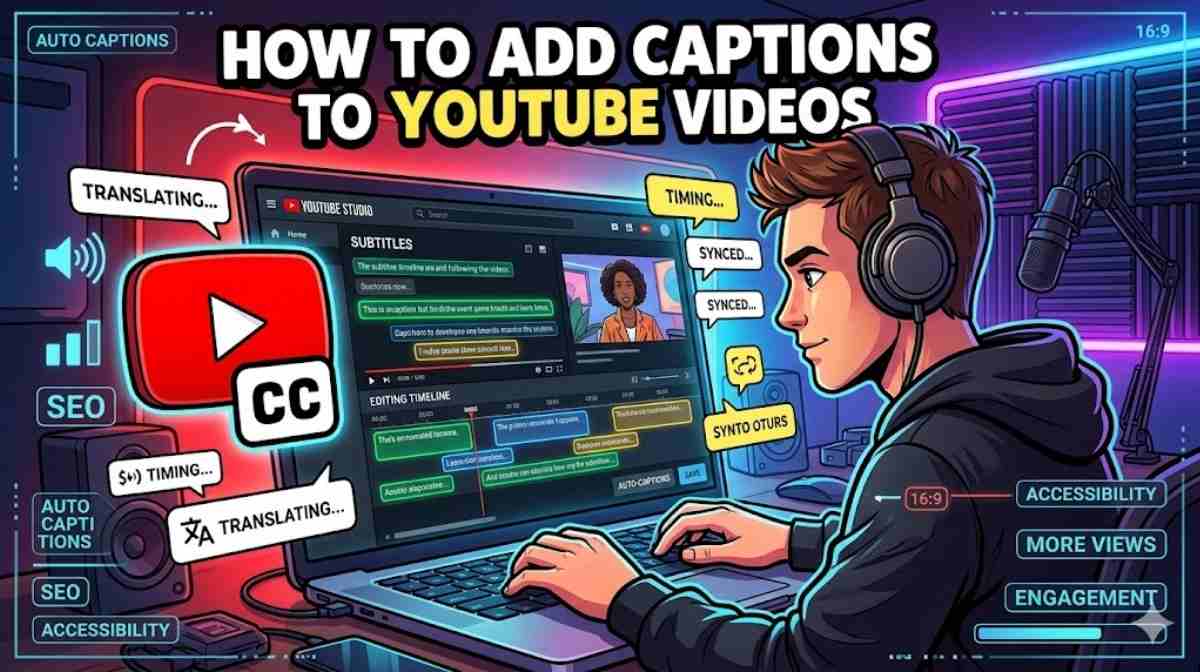
Learning how to add captions to YouTube videos can completely change how people watch your content. Many viewers watch videos without sound during work, travel, or late at night. Captions help them stay engaged. They also make your videos easier to understand for people around the world.
If you want better watch time, stronger engagement, and improved SEO, you need to learn how to add captions to YouTube videos correctly. Good captions improve accessibility and help search engines understand your content. They also make your channel look more professional and trustworthy.
Many creators think captioning is difficult. It is not. Once you understand how to add captions to YouTube videos, the process becomes simple and fast. This guide explains everything step by step. You will learn how to use YouTube Studio captions, edit subtitles, upload files, and create accurate captions like a professional creator.
Why Learning How to Add Captions to YouTube Videos Matters
Adding captions is no longer optional. Modern video audiences expect them. Whether you create tutorials, gaming videos, business content, podcasts, or product reviews, captions improve the viewing experience instantly.
One major reason creators learn how to add captions to YouTube videos is accessibility. Millions of people rely on YouTube closed captions every day. Some viewers are deaf or hard of hearing. Others speak English as a second language. Captions help all of them understand your message clearly.
Research from Verizon Media showed that nearly 70% of people watch videos without sound in public places. That means your video may lose viewers quickly if captions are missing. Strong YouTube video captions keep people watching longer because viewers can follow the conversation even when muted.
Captions also improve SEO. Search engines cannot watch videos like humans do. Instead, they analyse text. When you create captions for YouTube, you provide searchable text that helps YouTube understand your topic. This increases the chance of ranking for valuable keywords.
Here is a simple comparison table:
| Feature | Videos Without Captions | Videos With Captions |
| Accessibility | Limited | High |
| Watch Time | Lower | Higher |
| SEO Performance | Weak | Strong |
| Viewer Retention | Lower | Better |
| International Reach | Limited | Wider |
Another huge benefit involves international audiences. With multilingual YouTube subtitles, creators can reach viewers across different countries. A fitness tutorial uploaded in English can gain thousands of extra views once translated into Spanish, French, or Hindi.
“Captions do not just help viewers. They help your content travel further.”
Understanding the Different Types of YouTube Video Captions
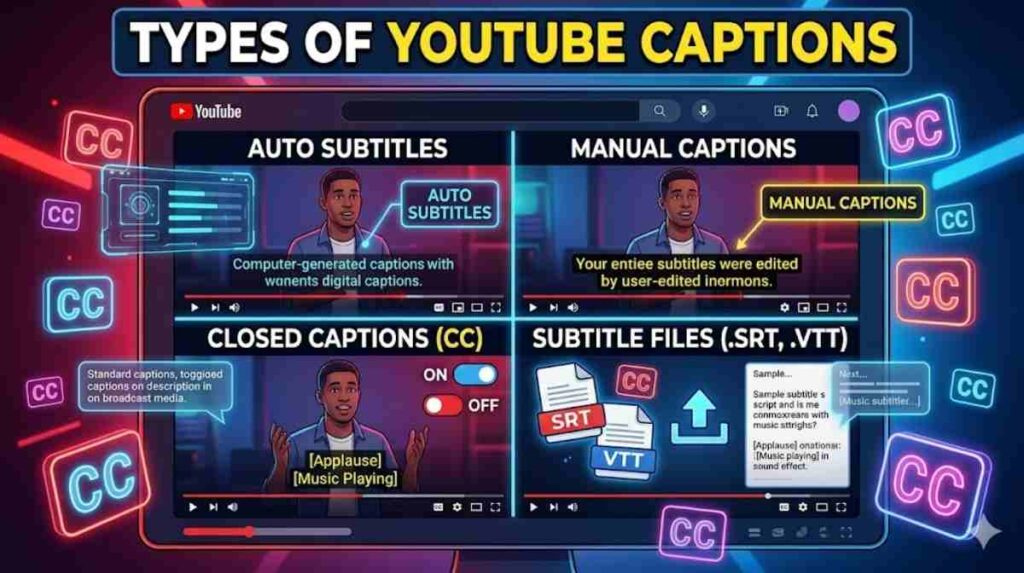
Before learning how to caption YouTube videos, you need to understand the different captioning methods available on YouTube.
What Are YouTube Closed Captions?
YouTube closed captions are subtitles viewers can switch on or off during playback. Unlike burned-in subtitles, these captions remain optional. Users control them through the caption settings on YouTube.
Closed captions often include more than spoken words. They may also describe sounds like:
- Door slams
- Music playing
- Crowd cheering
- Background noise
This improves accessibility for hearing-impaired viewers.
Automatic Captions on YouTube Explained
Automatic captions on YouTube use speech recognition technology to generate subtitles automatically. These are also called YouTube auto subtitles.
The system scans spoken audio and converts it into text. This method saves time and works well for creators who upload videos regularly.
However, automatic systems still make mistakes. Strong accents, poor microphones, fast speech, or background noise can reduce accuracy badly.
For example:
| Audio Quality | Caption Accuracy |
| Clear studio microphone | High |
| Noisy outdoor recording | Medium |
| Fast overlapping speech | Low |
That is why creators often combine automatic captions on YouTube with manual editing.
Manual YouTube Captions vs Automatic Captions
Manual YouTube captions take longer to create but deliver much better accuracy. This method gives you full control over spelling, punctuation, formatting, and timing.
Creators who care about professionalism usually edit their captions manually even after using automatic tools.
This approach works especially well for:
- Educational videos
- Technical tutorials
- Medical content
- Financial advice videos
- Brand marketing campaigns
Subtitle Files and Supported Formats
YouTube supports multiple subtitle formats. The most common option is the SRT file.
A subtitle file for YouTube contains timestamps and caption text. Creators can upload these files directly into YouTube Studio.
Common formats include:
| File Type | Purpose |
| SRT | Most popular subtitle format |
| VTT | Web video subtitles |
| SBV | YouTube subtitle format |
Learning how to use SRT files on YouTube helps speed up the captioning process dramatically.
How to Add Captions to YouTube Videos Step by Step
Understanding how to add captions to YouTube videos step by step makes the process much easier.
First, sign into your YouTube account and open YouTube Studio. On the left menu, click “Subtitles”. Then choose the video you want to edit.
YouTube offers several ways to add captions to YouTube videos. You can:
- Upload subtitle files
- Use automatic captions
- Type captions manually
- Sync transcript text automatically
The easiest method for beginners involves automatic captioning followed by manual editing.
Here is the standard process:
| Step | Action |
| 1 | Open YouTube Studio |
| 2 | Select your video |
| 3 | Click “Subtitles” |
| 4 | Choose caption method |
| 5 | Edit timing and spelling |
| 6 | Publish captions |
If you want to know how to put captions on YouTube videos without expensive software, YouTube Studio already includes built-in tools. The YouTube subtitle editor allows creators to edit captions directly inside the platform.
Creators should always review subtitle timing carefully. Poor timing ruins the viewing experience. Accurate syncing improves readability and engagement.
How to Add Captions to YouTube Videos Automatically
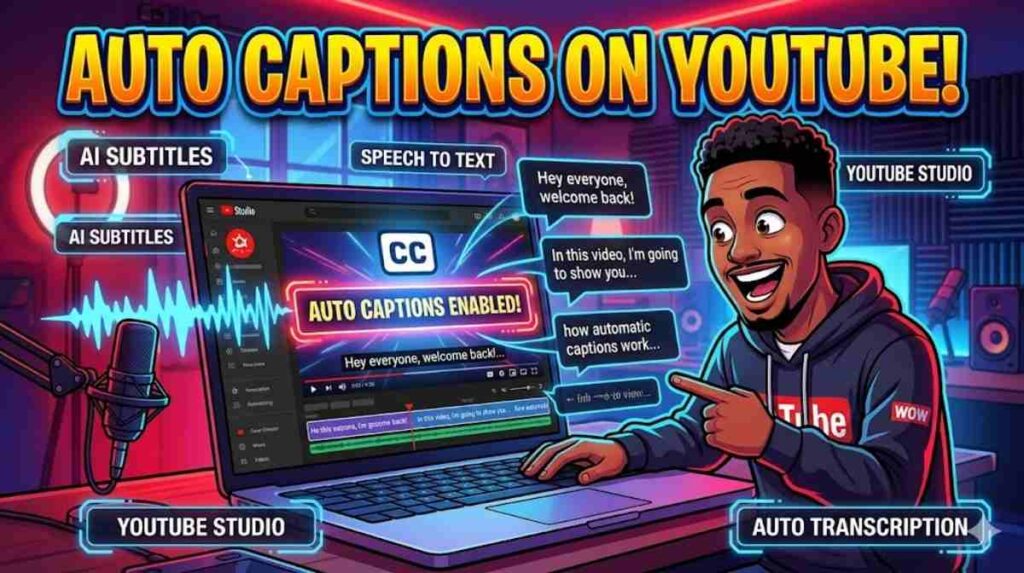
Many creators prefer learning how to add captions to YouTube videos automatically because it saves time.
When your video finishes processing, YouTube may generate captions automatically. These appear inside the subtitles section.
To enable them:
- Upload your video
- Wait for processing
- Open subtitles in YouTube Studio
- Review generated captions
- Edit mistakes
- Publish updates
This method works well for podcasts, tutorials, interviews, and talking-head videos with clear audio.
However, YouTube auto subtitles often contain grammar mistakes or incorrect wording. A creator saying “SEO ranking” may accidentally appear as “CEO raining”. Small mistakes like this damage credibility.
That is why successful creators always edit YouTube subtitles before publishing.
A smart workflow combines AI speed with human editing. This hybrid approach saves time while improving accuracy.
Many creators also use external caption generator for YouTube tools. Popular platforms include:
| Tool | Main Benefit |
| Descript | AI transcription |
| VEED | Fast subtitle editing |
| Kapwing | Browser-based captions |
| Rev | Professional transcription |
These platforms simplify YouTube transcription and subtitle generation.
How to Add Captions to YouTube Videos Manually for Better Accuracy
Creators who want professional results often learn how to manually add captions to YouTube videos.
Manual captions provide better punctuation, improved readability, and cleaner timing. This matters for educational and business content where clarity is essential.
Inside YouTube Studio, creators can type subtitles line by line using the built-in editor. This process gives complete control over wording and timing.
When learning how to sync subtitles on YouTube, timing matters more than many people realise. Captions should appear exactly when words are spoken. Delayed subtitles frustrate viewers quickly.
Good subtitles follow simple readability rules:
| Best Practice | Recommendation |
| Characters per line | 32–42 |
| Caption duration | 1–7 seconds |
| Reading speed | Comfortable pace |
| Line breaks | Natural pauses |
Creators also need to understand how to edit captions on YouTube effectively. Editing includes fixing spelling errors, punctuation, speaker changes, and subtitle timing.
“Accurate captions build trust faster than flashy editing.”
How to Upload Subtitle Files to YouTube
Learning how to upload subtitles to YouTube becomes important once your channel grows.
Professional creators often prepare subtitle files separately using dedicated software. Then they upload finished captions into YouTube Studio.
To upload subtitles to YouTube, open the subtitle section and choose “Upload File”. Then select your subtitle format.
Many creators prefer SRT files because they are widely supported.
An SRT file looks like this:
1
00:00:01,000 –> 00:00:04,000
Welcome to our YouTube tutorial.
2
00:00:05,000 –> 00:00:08,000
Today we will learn caption editing.
Understanding how to add SRT file to YouTube helps creators manage large content libraries efficiently.
This workflow also improves consistency across multiple videos.
How to Add Subtitles to Videos Before Uploading
Some creators prefer adding subtitles before uploading videos to YouTube.
This method creates “burned-in captions”. Unlike YouTube closed captions, viewers cannot switch them off.
Burned-in captions work especially well for:
- Instagram Reels
- TikTok videos
- Facebook clips
- Promotional adverts
Creators often use editing software like Adobe Premiere Pro, Final Cut Pro, or DaVinci Resolve.
This approach helps creators who want complete design control. They can customise fonts, colours, animation, and placement.
However, standard closed captions remain better for accessibility and SEO.
How to Add Captions on Mobile YouTube
Many beginners search for how to add captions on mobile YouTube because they edit videos using phones.
Mobile caption editing remains limited compared to desktop tools. Still, creators can manage basic subtitle settings through the YouTube app.
For advanced editing, desktop access works much better. Larger screens improve subtitle timing and readability.
Creators who regularly publish mobile content often use third-party editing apps before uploading videos.
Customize YouTube Captions for Better Viewer Experience
Good captions should feel natural and easy to read.
Creators can customize YouTube captions using the platform’s settings menu. Viewers may adjust:
- Font size
- Text colour
- Background colour
- Opacity
- Window style
Readable captions improve accessibility dramatically.
A bright yellow font on a transparent background may look stylish but it often hurts readability. Simple white text with dark shading usually performs best.
Good captions should never distract from the video itself.
Common Mistakes to Avoid When Adding Captions to YouTube Videos
Many creators rush the captioning process. That creates mistakes that reduce viewer trust.
One common problem involves relying completely on automatic captions on YouTube. AI tools save time but they still misunderstand words regularly.
Another issue involves poor subtitle timing. Creators often forget to review pacing carefully. This causes captions to appear too early or too late.
Some creators also overcrowd subtitles with huge text blocks. Long caption lines overwhelm viewers.
Another overlooked mistake involves SEO. Many channels forget that captions help discoverability. Strategic keyword placement inside captions strengthens search relevance naturally.
Learning how to fix YouTube caption timing improves the entire viewing experience instantly.
Best Tips for Adding Captions to YouTube Videos Quickly
Speed matters when publishing regular content.
Creators who want faster workflows should improve audio quality first. Clear microphones reduce editing time dramatically because AI captions become more accurate.
Using templates also helps. Many professional creators save subtitle styles for consistency.
A hybrid workflow works best for most channels:
| Workflow Step | Purpose |
| Automatic transcription | Save time |
| Manual editing | Improve accuracy |
| Timing review | Better readability |
| Final proofread | Professional finish |
Creators should also learn keyboard shortcuts inside YouTube Studio captions tools. Small efficiency improvements save hours every month.
Best YouTube Caption Tools and Software
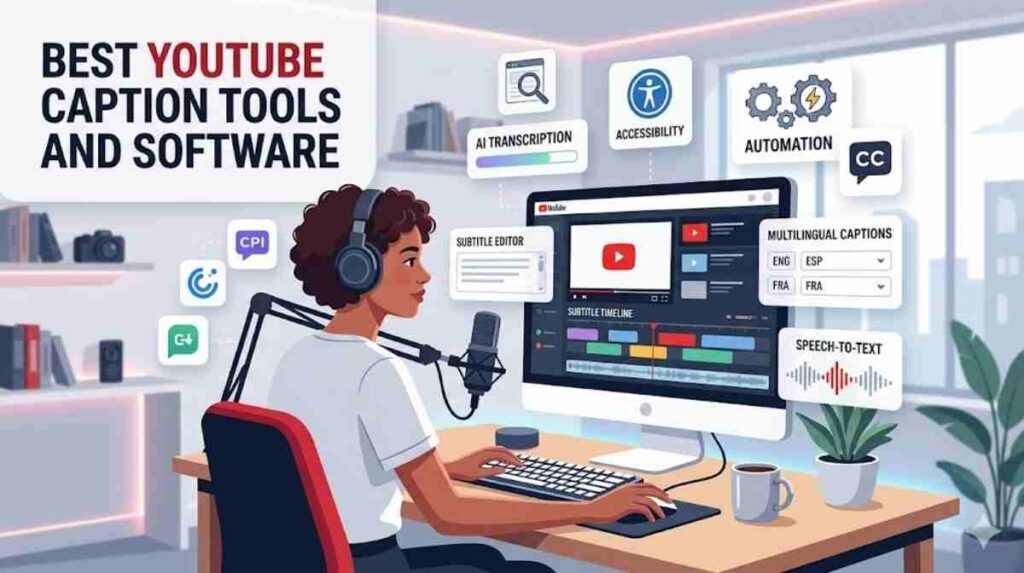
Several platforms simplify captions for video content.
YouTube Studio remains the easiest free solution. It includes automatic captions, subtitle editing, and translation tools.
However, advanced creators often use external software for better efficiency.
Popular tools include:
| Tool | Best For |
| Descript | Podcast creators |
| VEED | Social video editing |
| Kapwing | Beginners |
| Rev | Human transcription |
| Premiere Pro | Professional editing |
These tools simplify video captioning tutorial workflows and improve subtitle accuracy.
FAQs
How Do I Turn On Captions for YouTube Videos?
Click the “CC” button beneath the video player. This enables captions instantly.
Can I Add Captions Without Software?
Yes. YouTube Studio already includes built-in subtitle tools.
How Do I Create Captions for YouTube Videos Faster?
Use automatic transcription first. Then edit manually for accuracy.
Can I Translate Captions Into Other Languages?
Yes. YouTube supports multilingual YouTube subtitles for global audiences.
What Is the Best Way to Add Captions to YouTube Videos?
A hybrid method works best. Start with AI captions and then edit them manually.
How Accurate Are Automatic Captions on YouTube?
Accuracy depends heavily on audio quality, pronunciation, and background noise.
Final Thoughts
Learning how to add captions to YouTube videos can help your channel grow faster. Captions make videos easier to watch and understand. They also improve accessibility and keep viewers watching longer. When you learn how to add captions to YouTube videos, you can reach more people across different countries and devices.
Many creators now use YouTube video captions, YouTube closed captions, and automatic captions on YouTube to improve engagement. You can use YouTube Studio captions, upload a subtitle file for YouTube, or create manual YouTube captions for better accuracy. Good captions also help with SEO and viewer retention.
Now that you understand how to add captions to YouTube videos, you can create better content with confidence. Use the right YouTube caption tools, check subtitle timing carefully, and keep improving your captions for video content over time.