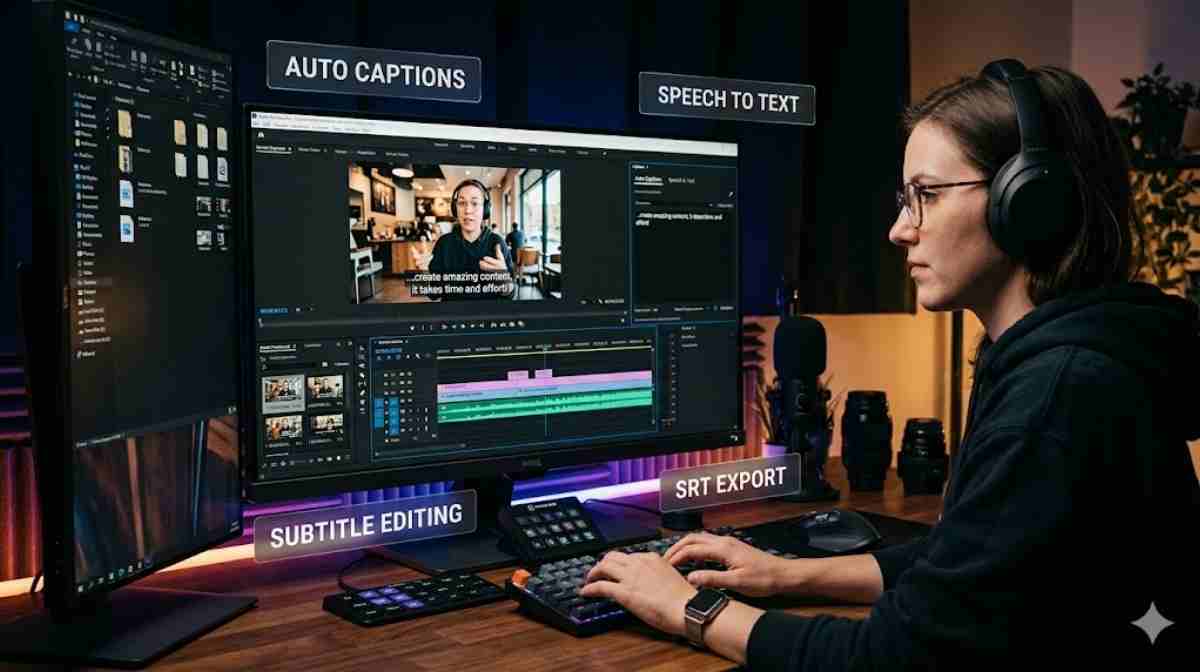
Video content is everywhere today. People watch videos on YouTube, TikTok, Instagram, and business websites every single day. That is why learning how to add captions in premiere can make a huge difference. Captions help viewers understand your message clearly even when the sound is off. They also improve accessibility and viewer engagement.
Many creators now use Premiere Pro captions to make videos look more professional. Whether you create tutorials, interviews, podcasts, or social media clips, captions help your audience stay connected. Learning how to add captions in Premiere Pro is easier than most beginners think. Adobe has added smart tools that save time and improve accuracy.
This guide explains how to add captions in premiere step by step. You will learn how to use the Premiere Pro auto caption feature, edit subtitles, improve timing, and export captions correctly. By the end, you will know the easiest way to create clean and professional captions for any video project.
Why Captions Matter in Modern Video Editing
Video captions are no longer optional. They have become a key part of modern content creation. Studies from major social media platforms show that many users watch videos without sound, especially on mobile devices. This simple behaviour has changed how creators edit videos. When viewers cannot hear dialogue, captions become the bridge between the video and the audience.
Learning how to add captions in premiere improves viewer retention dramatically. A viewer who understands the message is far more likely to keep watching. This matters on YouTube, Instagram Reels, TikTok, and even online learning platforms. Captions also help people with hearing difficulties enjoy content fully. That is why many creators now use closed captions in Premiere Pro for accessibility and audience growth.
There is also a strong SEO benefit. Search engines cannot watch videos the way humans do. However, they can crawl subtitle files and text transcripts. Using Adobe Premiere captions gives search engines more information about your video content. That can improve visibility in search results.
Creators often choose between manual subtitles and auto captions in Premiere Pro. Manual captions offer maximum control. Automatic captions save hours of work. Adobe’s modern speech to text Premiere Pro system makes automatic captioning much faster than older editing methods.
Good captions do more than display words. They improve accessibility, increase engagement, and make videos easier to understand.
Getting Started With Premiere Pro Captions
Before you begin, make sure your audio quality is clean. Background noise, music, and overlapping voices reduce transcription accuracy. If your recording sounds clear, the Premiere Pro transcription system will work much better.
The first step is understanding the caption workflow in Premiere. Adobe has simplified the process in recent updates. Everything now works through the Premiere Pro text panel. This panel lets you create transcriptions, generate subtitles, edit text, and export captions from one place.
There are several caption types available inside Premiere Pro.
| Caption Type | Best Use |
| Closed Captions | Accessibility and optional viewing |
| Open Captions | Burned into social media videos |
| Subtitle Files | YouTube and streaming platforms |
Many YouTubers prefer subtitle files because viewers can turn them on or off. Social media creators often use open captions Premiere Pro tools because captions remain visible directly inside the video.
If you are a beginner, the easiest starting point is using the Premiere Pro subtitle generator. Adobe’s automatic system creates captions quickly and reduces editing time.
How to Add Captions in Premiere Using the Text Panel
The simplest method for how to add captions in Premiere Pro starts inside the Text workspace. Open your project and select “Window” followed by “Text.” This opens the powerful Premiere Pro text panel.
Inside the panel, you will see the transcription section. Click “Transcribe Sequence.” Premiere analyses the audio automatically using its built-in speech to text Premiere Pro technology. The software converts spoken words into editable text within minutes.
This feature has transformed modern editing workflows. In older versions, editors had to type subtitles manually. Now you can create subtitles almost instantly. That is why many creators call this the easiest way to add captions in Premiere.
After transcription finishes, click “Create Captions.” Premiere generates subtitle blocks automatically. This process helps users create automatic captions in Premiere without advanced editing skills.
You can adjust several settings before generating captions.
| Setting | Recommended Option |
| Caption Length | 32-40 characters |
| Duration | 3-5 seconds |
| Lines | Maximum 2 lines |
| Gap Length | Short pauses only |
Once captions appear on the timeline, you can begin editing. Many editors spend time correcting punctuation, grammar, and timing. This stage is important because automatic transcription is not always perfect.
If you wonder how to edit captions in Premiere Pro, simply click any caption block. You can rewrite text, adjust timing, or split subtitles easily. This makes subtitle editing Premiere Pro projects far more manageable than older manual systems.
How to Add Captions in Premiere Faster With Auto Captions
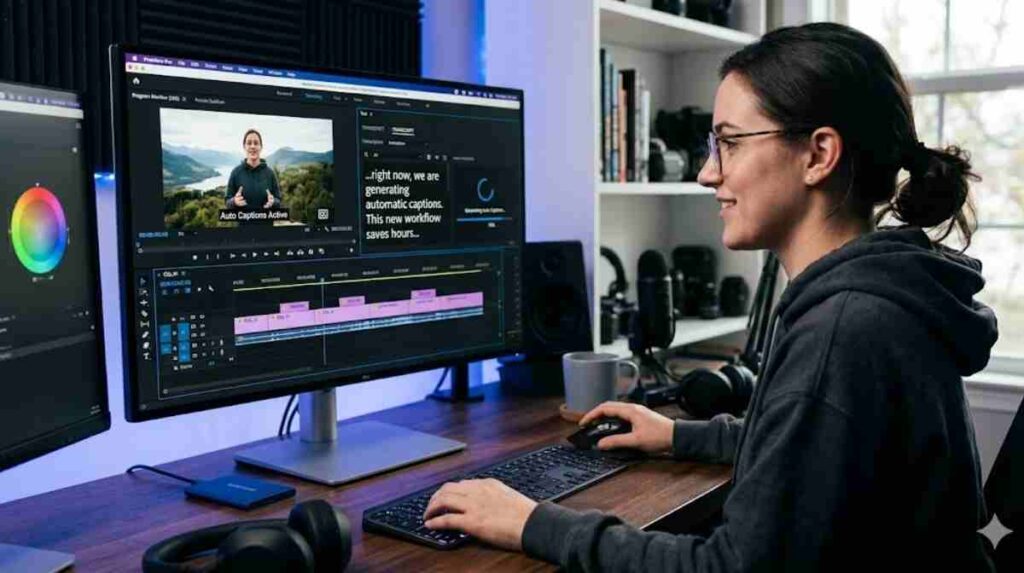
Automatic captions save enormous amounts of time. Many creators produce daily content now, so speed matters. Adobe introduced the Premiere Pro auto caption feature to help editors work faster without sacrificing quality.
To begin, open the Text panel and create a transcription. Premiere analyses spoken audio using artificial intelligence. After that, select “Create Captions.” The software instantly turns speech into subtitle segments.
This feature is ideal for YouTube tutorials, podcasts, interviews, and online courses. Many creators use how to generate subtitles in Premiere tutorials specifically to speed up content production.
Still, automatic captions are not flawless. Strong accents, loud music, and poor microphones can confuse the software. That is why professional editors always review captions manually.
A good workflow looks like this:
- Generate automatic captions
- Review spelling and punctuation
- Fix subtitle timing
- Improve readability
- Export captions properly
Editors who learn how to turn speech into captions in Premiere often reduce editing time by more than half. That gives creators more time to focus on storytelling and video quality.
Auto captions speed up editing dramatically, but manual polishing still creates the best final result.
How to Add Captions in Premiere and Edit Timing Easily
Caption timing can make or break a video. Poor timing confuses viewers quickly. If subtitles appear too early or too late, audiences lose focus.
To sync captions in Premiere, zoom into your timeline carefully. Match subtitle blocks with spoken dialogue. Premiere makes this process simple because captions appear directly beneath video and audio tracks.
Many beginners ask how to sync subtitles in Premiere Pro properly. The secret is pacing. Captions should appear naturally with speech. Readers need enough time to process text comfortably.
Professional editors often follow these timing rules:
| Caption Element | Ideal Standard |
| Reading Speed | 160-180 words per minute |
| Caption Duration | 1-7 seconds |
| Maximum Lines | 2 |
| Characters Per Line | 42 |
If subtitles feel rushed, split them into smaller segments. If they linger too long, trim the timing slightly. Learning how to fix caption timing in Premiere improves video quality significantly.
This stage also helps when editors need to edit captions in Premiere Pro for better readability. Breaking long sentences into shorter subtitles creates a smoother viewer experience.
Best Settings for How to Add Captions in Premiere
Strong caption design improves readability instantly. Viewers should read subtitles comfortably without straining their eyes. That is why choosing the best caption settings in Premiere Pro matters so much.
Most professional editors use clean fonts like Arial, Helvetica, or Open Sans. These fonts remain readable on phones, tablets, laptops, and televisions.
Good captions usually follow these settings:
| Design Element | Recommended Choice |
| Font Size | Medium to large |
| Text Colour | White |
| Background | Semi-transparent black |
| Position | Bottom centre |
| Shadow | Light shadow for contrast |
When learning how to style captions in Premiere Pro, avoid flashy effects. Bright colours and complex animations often distract viewers. Simplicity works best.
Many creators also customise captions to match brand identity. YouTube channels often use consistent subtitle colours and styles across every upload. This creates stronger visual branding.
If you plan to upload videos online, you should also understand Premiere Pro caption export settings. Premiere lets users export subtitles as SRT files or burn captions directly into videos.
SRT files work well for YouTube uploads because viewers can toggle captions on and off. Burned captions are better for TikTok and Instagram because subtitles stay visible permanently.
How to Add Captions in Premiere for YouTube Videos
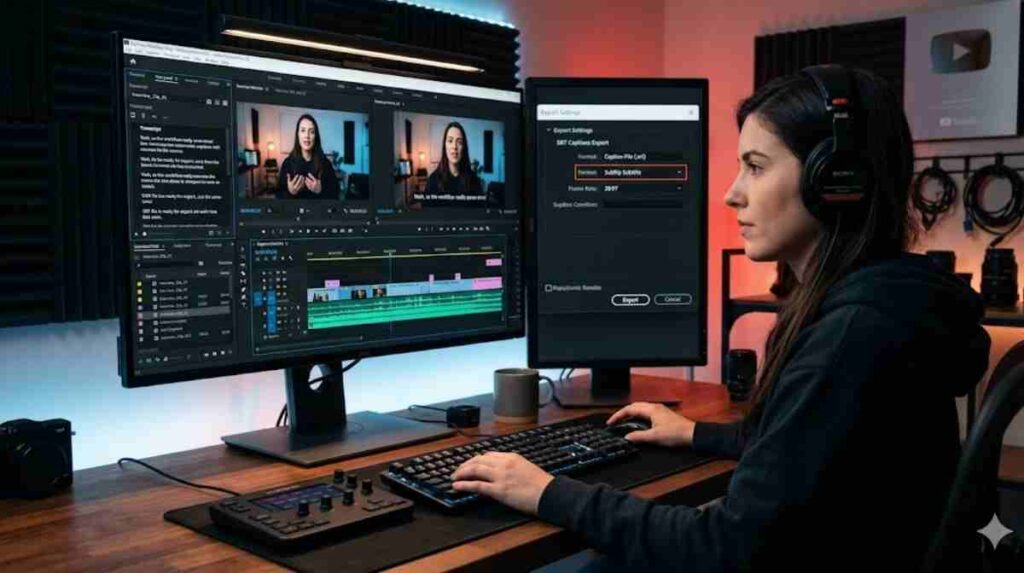
YouTube videos benefit massively from captions. Captions improve watch time, accessibility, and discoverability. They also help viewers follow content in noisy places.
Many creators now add YouTube captions in Premiere before uploading videos. This saves time because YouTube’s automatic captions sometimes contain errors.
When preparing subtitles for YouTube, export captions as SRT files. These files contain subtitle timing and dialogue only. Upload the SRT file directly into YouTube Studio.
If you create tutorials, podcasts, or educational content, captions become even more valuable. Search engines index subtitle text, which improves video SEO.
Creators using Premiere Pro captions for YouTube often see stronger viewer retention because audiences stay engaged longer.
A strong YouTube subtitle workflow includes:
- Create captions inside Premiere
- Review timing carefully
- Export SRT subtitles
- Upload captions to YouTube
- Test subtitles after publishing
Learning how to add subtitles in Premiere Pro correctly can improve audience satisfaction dramatically.
Common Mistakes to Avoid When Adding Captions in Premiere
Many beginners make simple captioning mistakes that reduce video quality. One common problem is overcrowding subtitles with too much text. Viewers need time to read comfortably.
Another mistake involves poor font selection. Decorative fonts might look stylish, but they reduce readability badly. Clean and simple fonts work best for video captions in Premiere.
Timing errors also hurt engagement. Captions that appear too late frustrate viewers quickly. That is why learning how to sync subtitles in Premiere Pro matters so much.
Some editors ignore mobile users completely. However, most viewers now watch videos on phones. Small subtitles become unreadable on tiny screens.
Skipping proofreading is another major issue. Automatic transcription tools are powerful, but they still make mistakes. Always review spelling, grammar, and punctuation before exporting captions.
Professional captions should feel invisible. Viewers should focus on the content, not subtitle mistakes.
Advanced Tips for Better Premiere Pro Captions
Professional editors often save subtitle templates to speed up future projects. This creates visual consistency across multiple videos. Templates also help maintain branding.
Keyboard shortcuts improve editing speed too. Experienced editors use shortcuts constantly when working on large subtitle projects.
If you create multilingual content, Premiere also supports translated subtitle workflows. Many global creators now create subtitles in Premiere for international audiences.
Different platforms also require different caption styles. TikTok captions are usually large and bold. YouTube subtitles remain smaller and cleaner. Corporate training videos often use professional-looking closed captions in Premiere Pro.
Understanding platform differences helps editors create captions that feel natural everywhere.
Premiere Pro Caption Tutorial for Beginners
If you are completely new to captions, the process may seem confusing at first. Thankfully, Adobe has simplified the workflow significantly.
Here is a simple recap:
- Import video footage
- Open the Premiere Pro text panel
- Create a transcription
- Generate captions automatically
- Edit subtitles carefully
- Adjust timing and styling
- Export captions properly
This modern workflow helps beginners learn how to make captions in Premiere without expensive third-party software.
Most creators improve quickly after a few projects. Caption editing becomes faster with practice. Soon, the entire process feels natural.
Frequently Asked Questions
How do I add captions in Premiere Pro automatically?
Use the Premiere Pro auto caption feature inside the Text panel. Create a transcription first, then click “Create Captions.”
Can Premiere Pro generate subtitles automatically?
Yes. Adobe uses AI-powered speech to text Premiere Pro technology to create captions automatically.
What is the easiest way to add captions in Premiere?
The easiest method is automatic transcription followed by quick manual editing.
Can I export captions separately?
Yes. Premiere supports SRT exports through the Premiere Pro caption export settings.
How do I customise captions in Premiere?
You can adjust fonts, colours, positioning, shadows, and backgrounds directly in the Essential Graphics panel.
Conclusion
Conclusion
Learning how to add captions in premiere can improve every video you create. Captions help people understand your content better. They also increase watch time and engagement. Many creators now use Premiere Pro captions and auto captions in Premiere Pro to save time. If you want better videos, learning how to add captions in premiere is a smart step.
The good thing is that Adobe makes the process simple. You can use the Premiere Pro text panel, speech to text Premiere Pro, and Premiere Pro transcription tools to create captions quickly. You can also edit captions in Premiere Pro and improve subtitle timing easily. This makes how to add captions in premiere easier for beginners.
Now you know how to add captions in premiere for YouTube, social media, and business videos. Use the right caption settings in Premiere and always check your subtitles before export.